The capture screen
One screen, from auto to manual
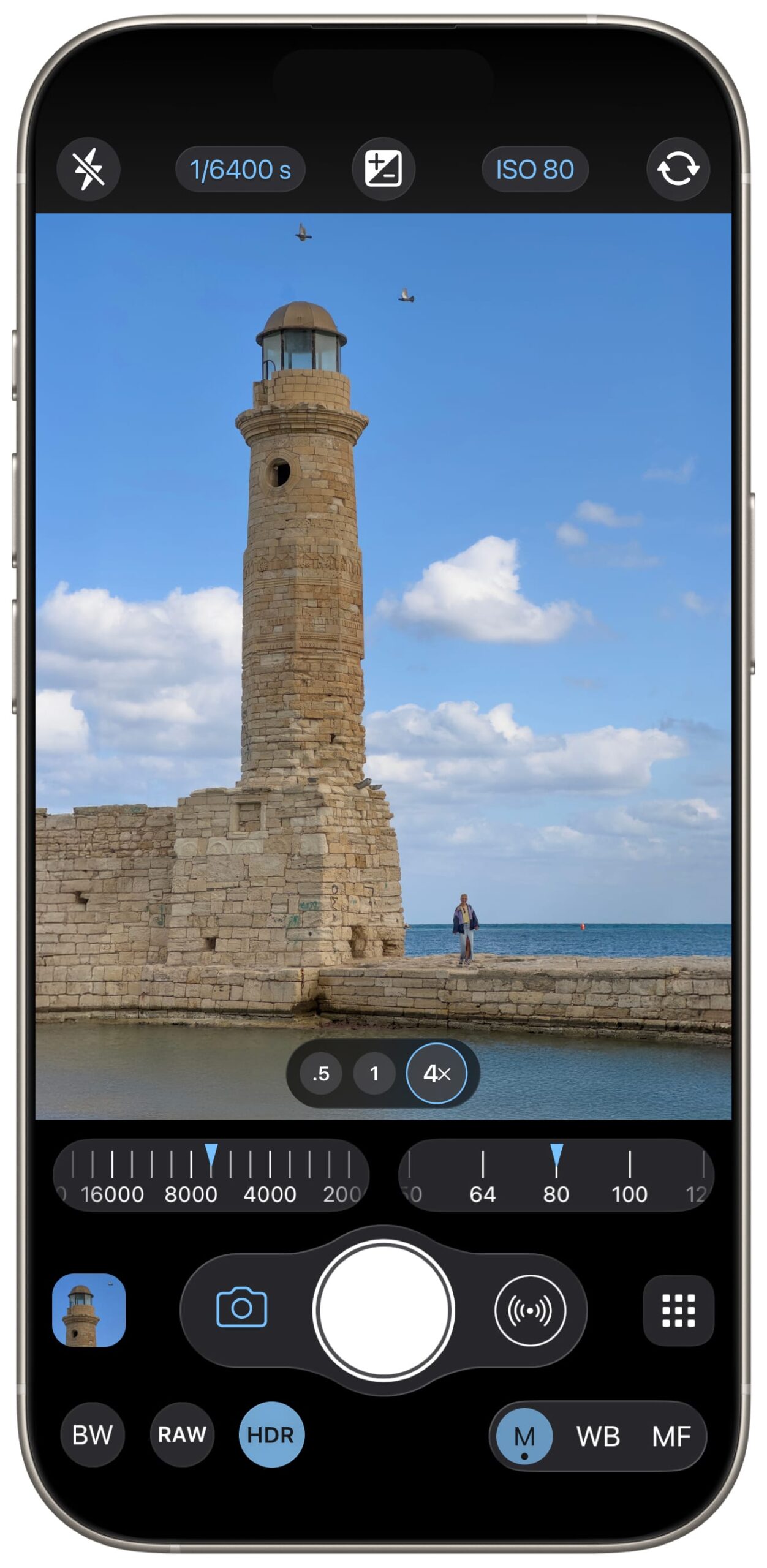
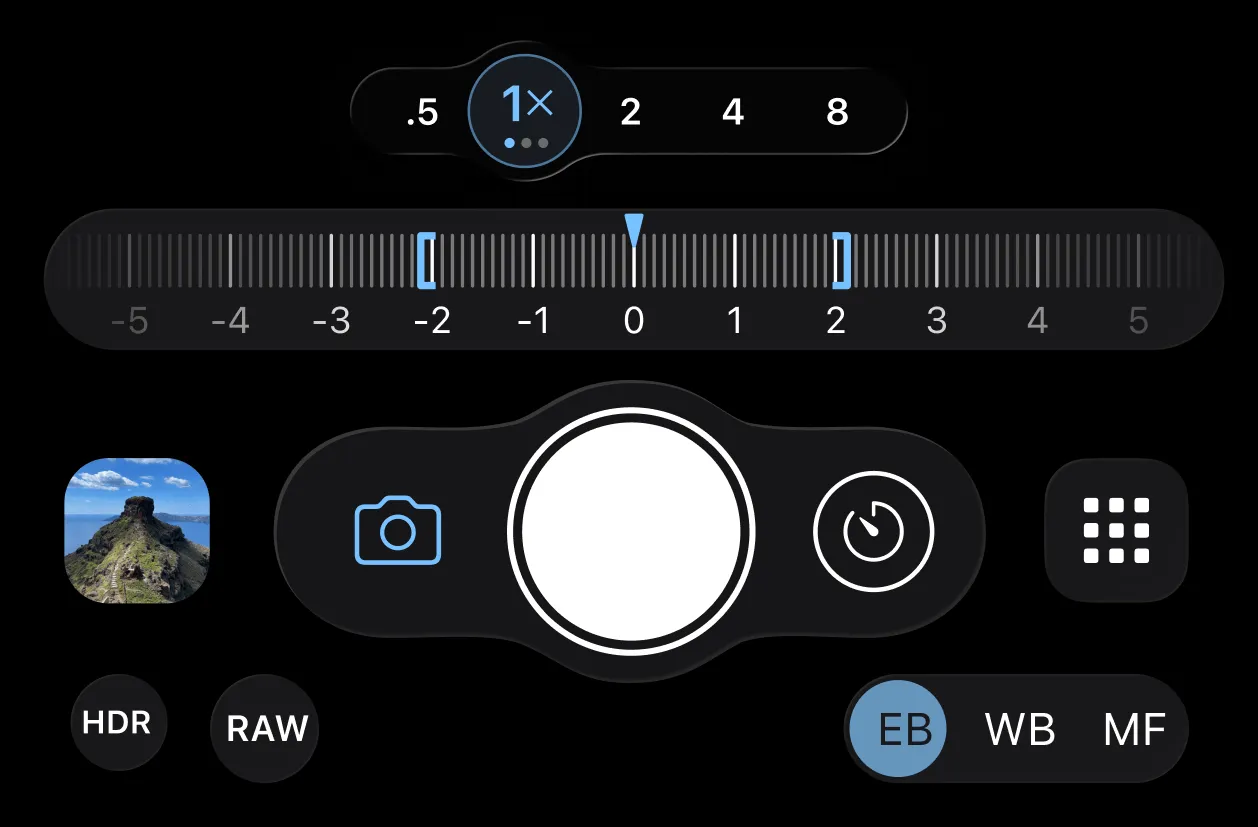
Tap to shoot, or switch to shutter priority, ISO priority or full manual with a tap on M. Shutter, ISO, white balance and focus each get a dial, and presets store a setup you want back later.
What ProCamera does, chapter by chapter: capture, light, video, editing, library, series and the places you shoot from.
The capture screen
Tap to shoot, or switch to shutter priority, ISO priority or full manual with a tap on M. Shutter, ISO, white balance and focus each get a dial, and presets store a setup you want back later.
RAW and ProRAW
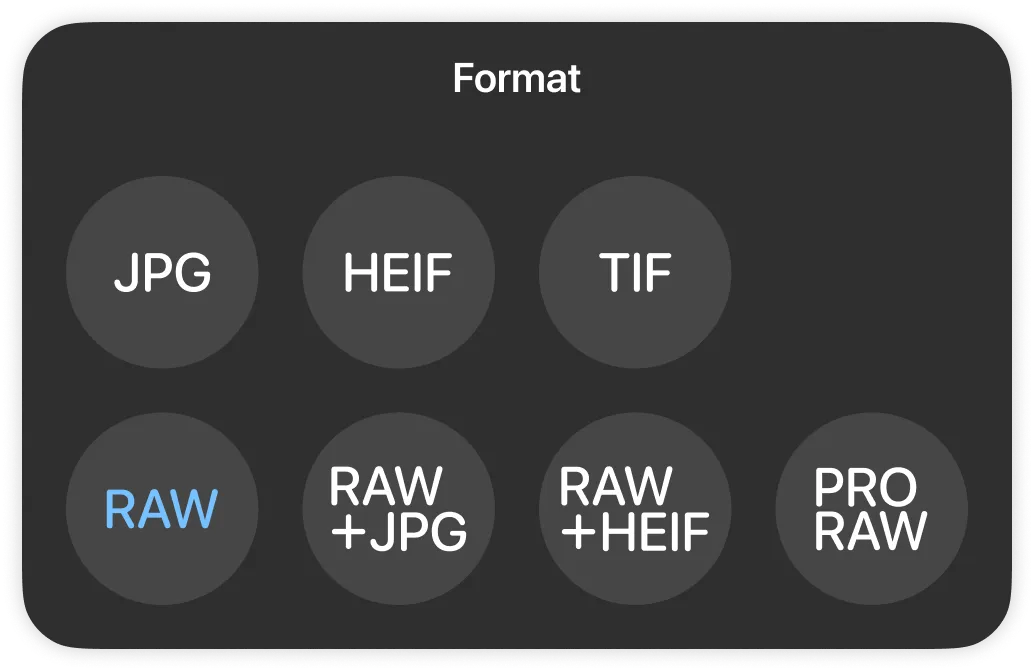
RAW (DNG), ProRAW, HEIF, JPEG and TIFF, up to 48 MP. RAW+JPEG or RAW+HEIF saves a processed companion next to the original. In auto mode ProCamera records ProRAW; RAW (DNG) is there in the manual and semi-automatic modes.
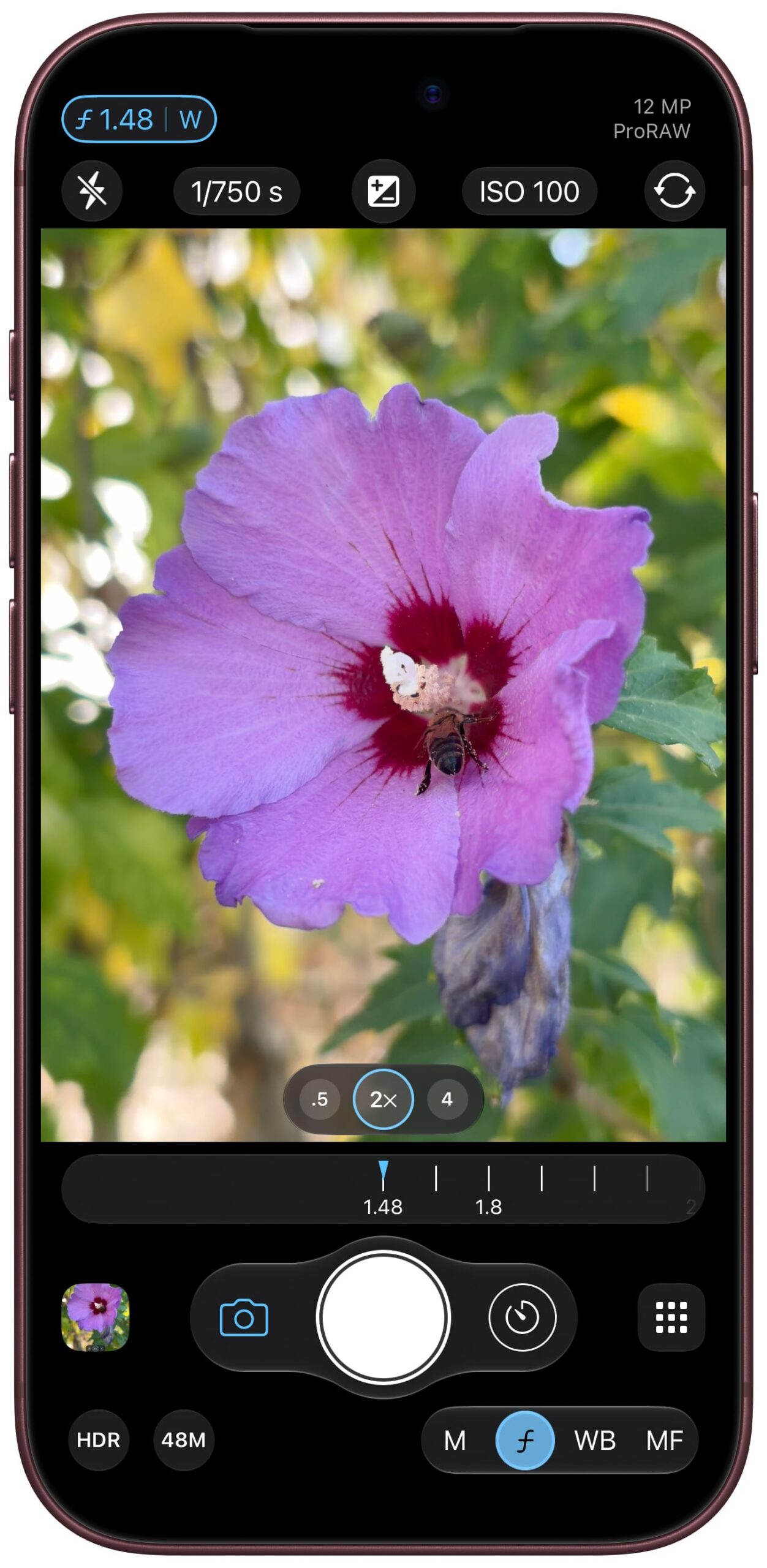
Aperture control · iPhone 18 Pro
On iPhone 18 Pro, the ƒ button opens an aperture dial with intermediate stops, and the readout shows the active lens next to the value.
Live perspective correction
The viewfinder shows the corrected image while you frame, so verticals stay vertical and the crop is visible before the shot. Fine-tune later in the Studio, without touching the original.
 Without correction
 With correction
HDR
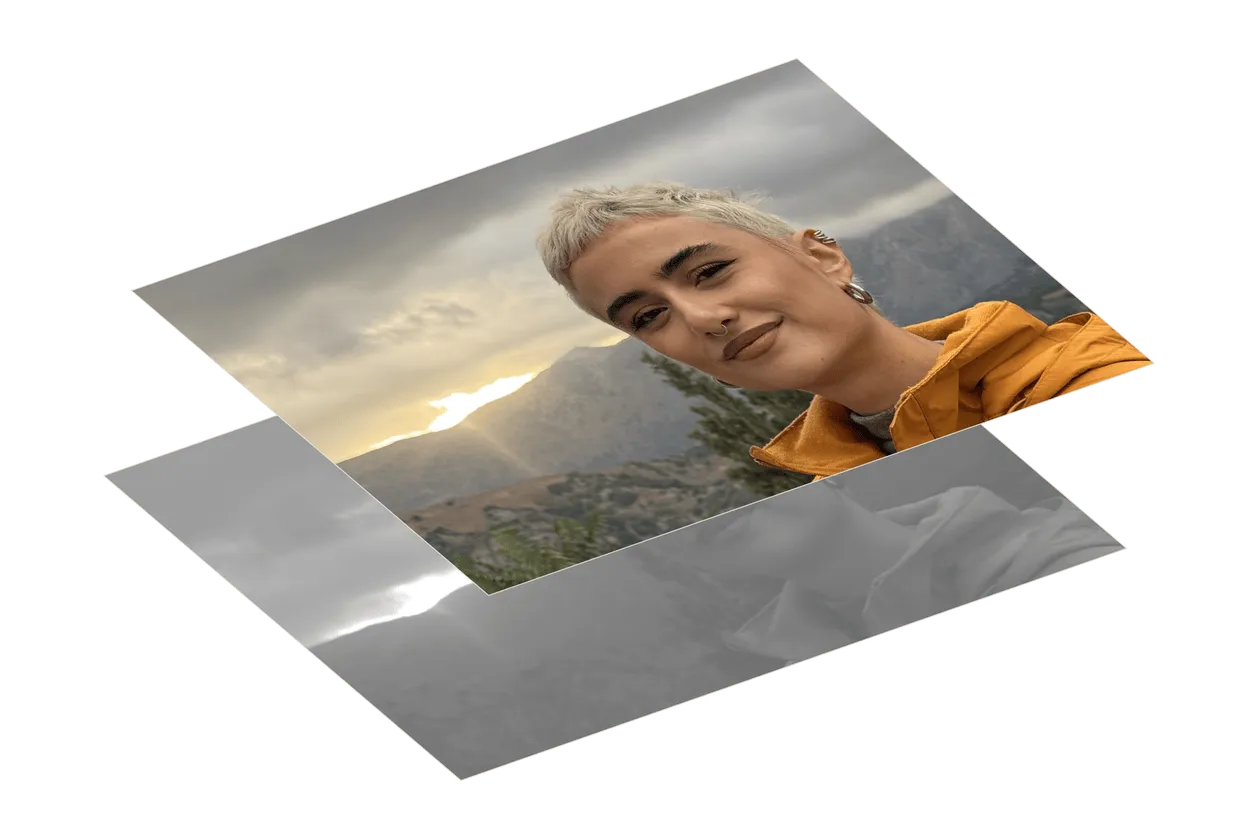
Smart HDR and Adaptive HDR merge several frames into one photo. The JPEG or HEIC file carries an embedded gain map: it looks right on any screen, and shows the extra range of brightness on displays that support HDR.
Exposure bracketingPremium
In any format, RAW and ProRAW included. Constant ISO keeps the sensitivity fixed across the bracket while the shutter changes, for cleaner merges.
Pro Video
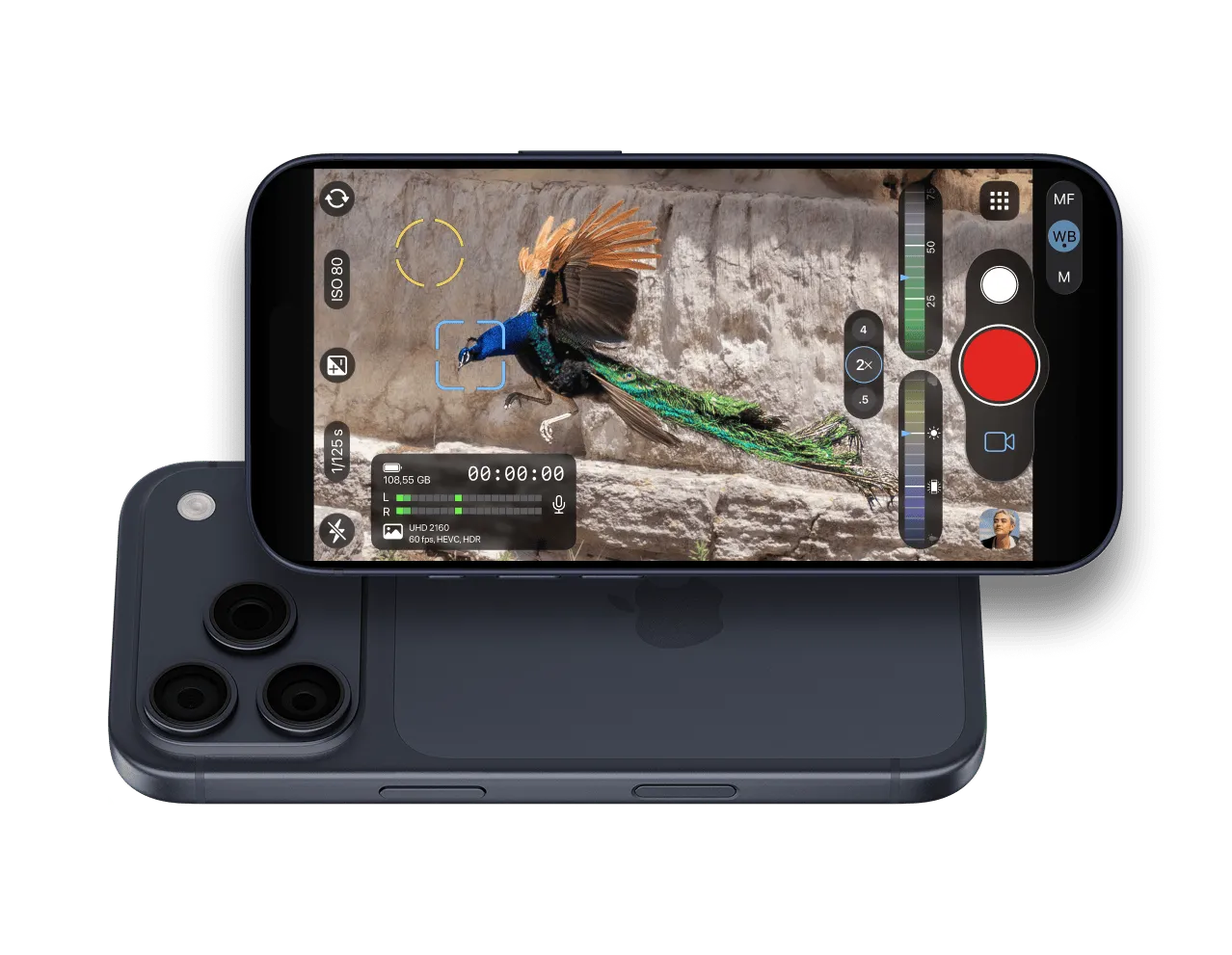
4K up to 120 fps, HEVC up to 240 fps, ProRes and ProRes RAW, audio in mono, stereo or spatial, recording to a USB-C drive.
ProRes RAW and Log
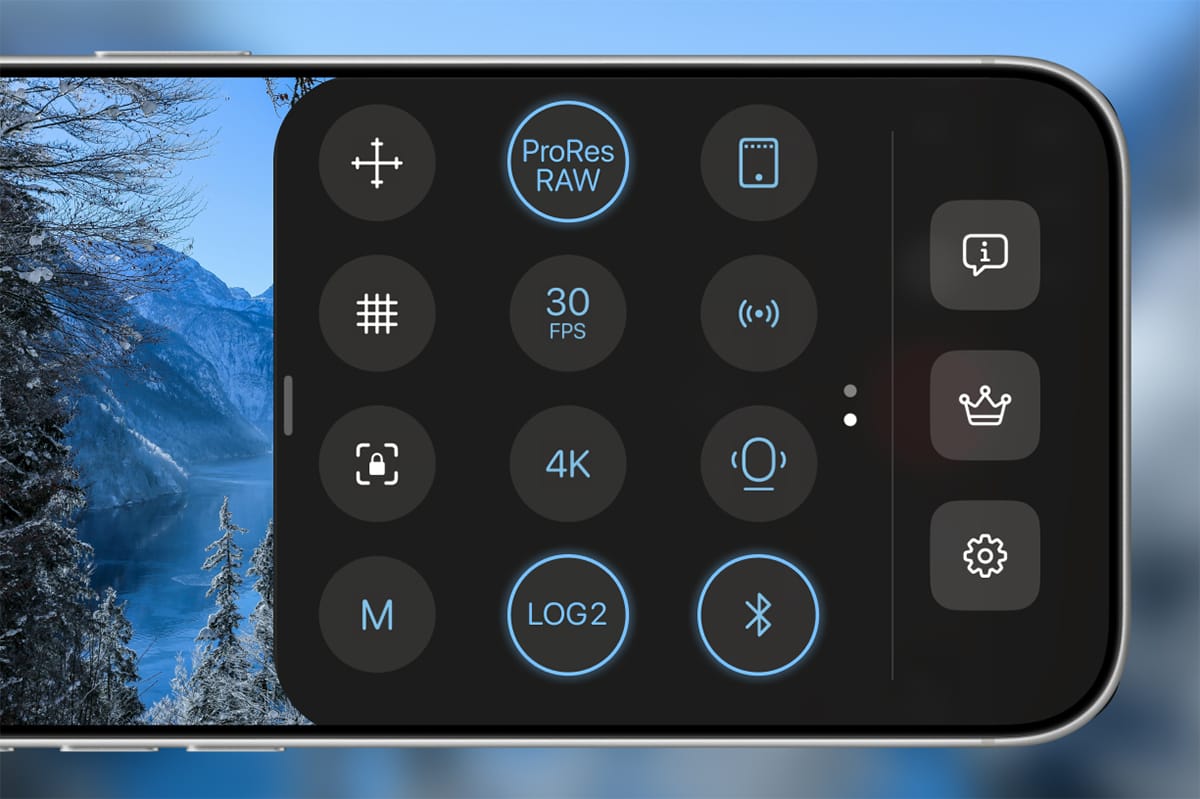
On iPhone 17 Pro and 18 Pro, ProRes RAW records with Apple Log or Log 2, and ProRes with Log 2; ProRes RAW always records to an external drive.
Video control panel
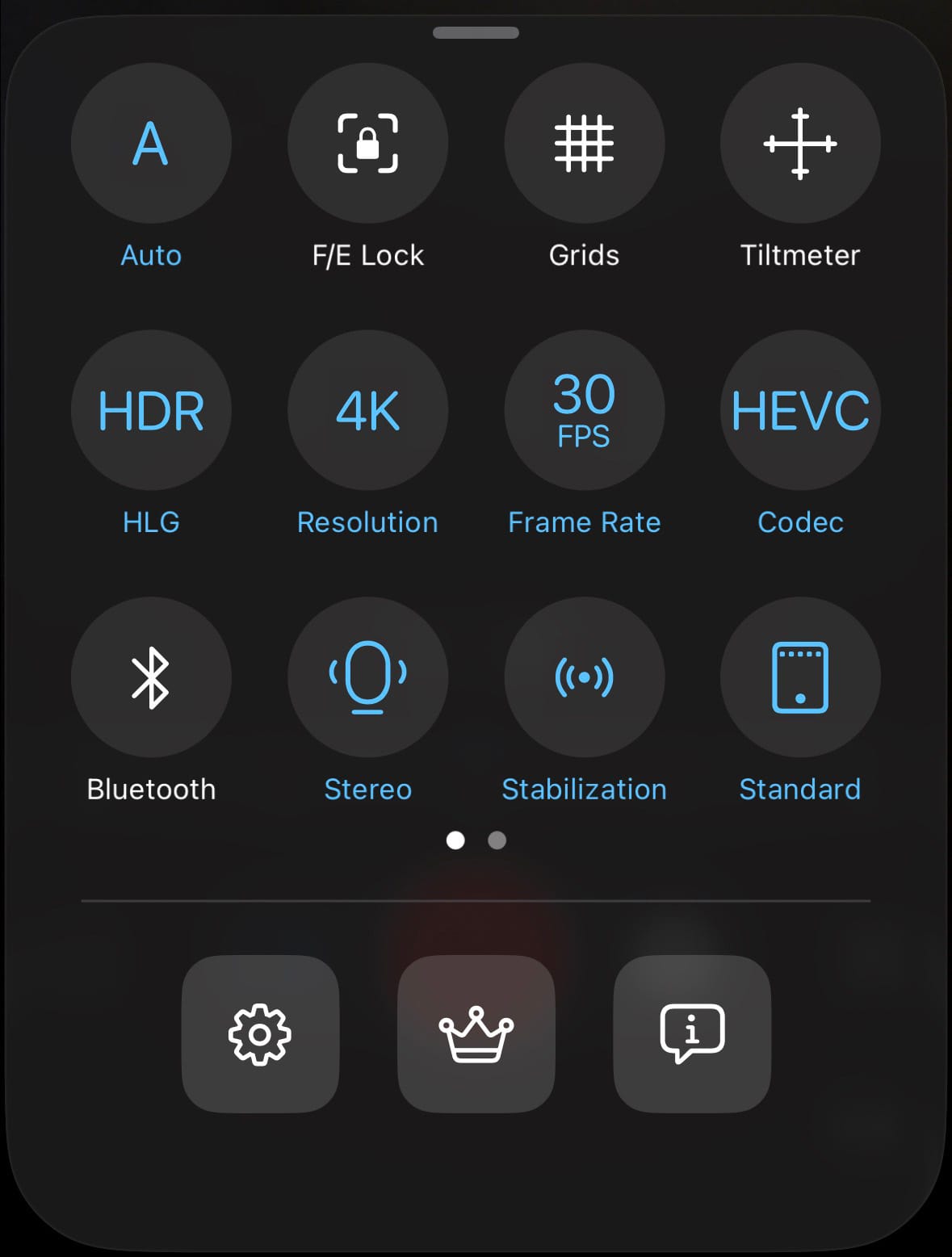
HDR, resolution, frame rate, codec, audio and stabilisation are one tap each in the video control panel, so you set up a shot without leaving the viewfinder. AirPods work as a microphone; the release in the EU is still pending.
The Studio
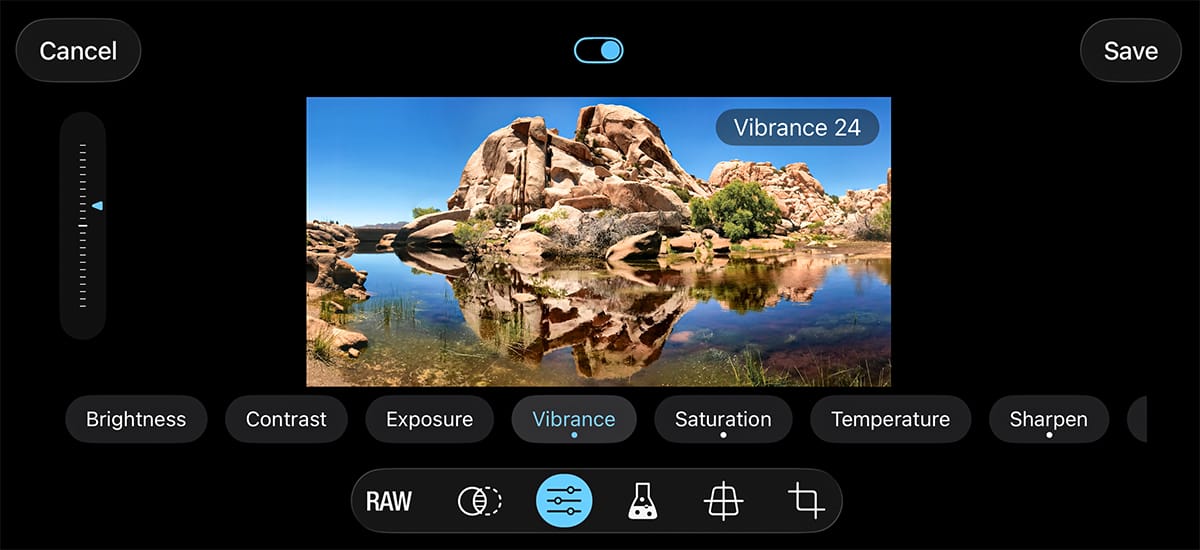
Every change is saved as an edited version you can adjust or remove later. RAW and ProRAW get their own tools; filters, duotones, Lab effects, straighten and crop sit alongside.
Depth
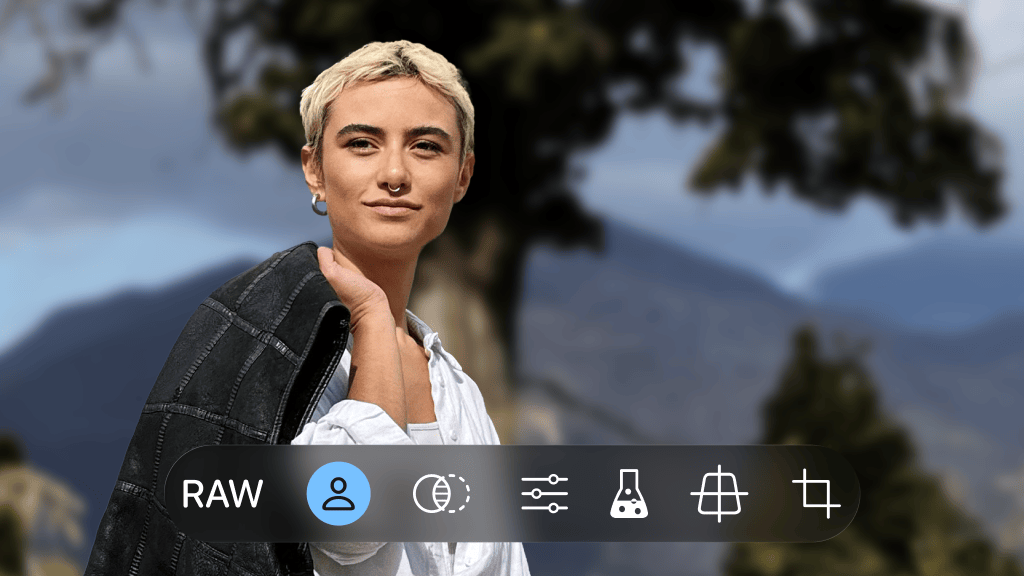
Smart Depth finds a face and lets you set a simulated aperture in the Studio. It also works on photos that were never taken in Portrait mode.
Library, stacks, external drives
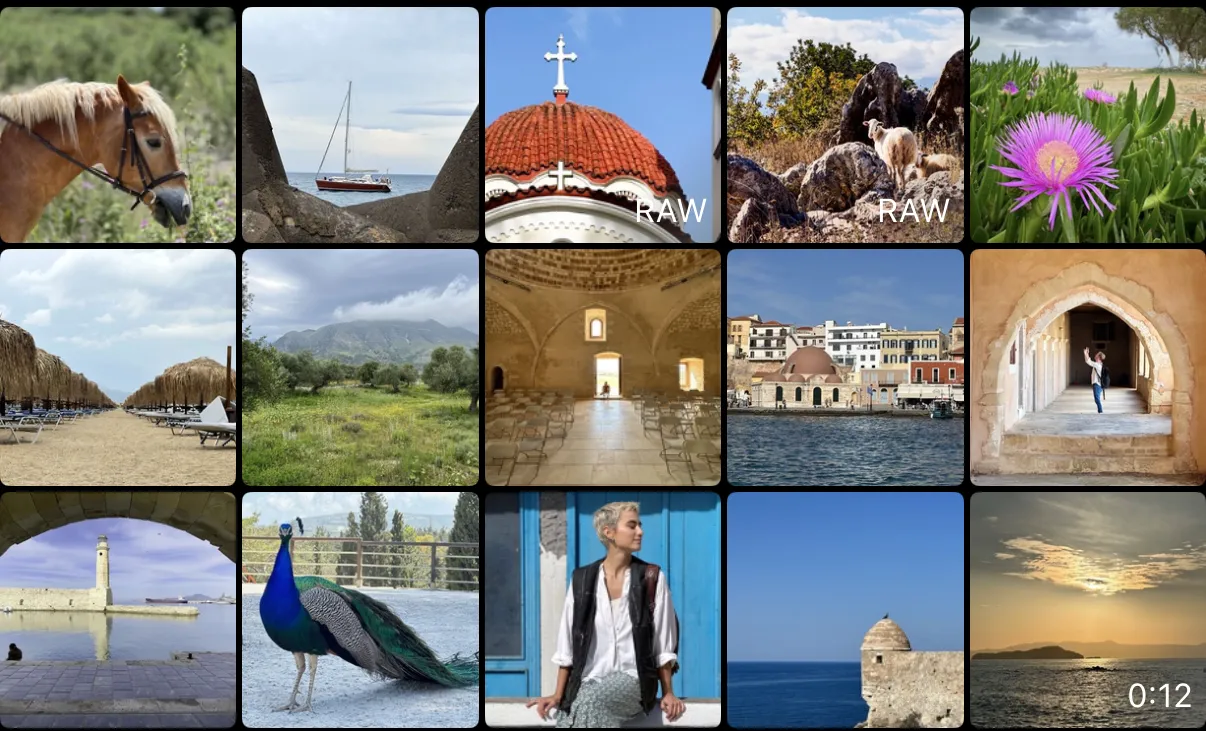
Bursts, brackets and timelapse sequences collapse into one stack with a count badge. Pinch to change the grid, switch between square and native thumbnails, and browse an SD card or USB drive with full metadata.
EXIF viewer
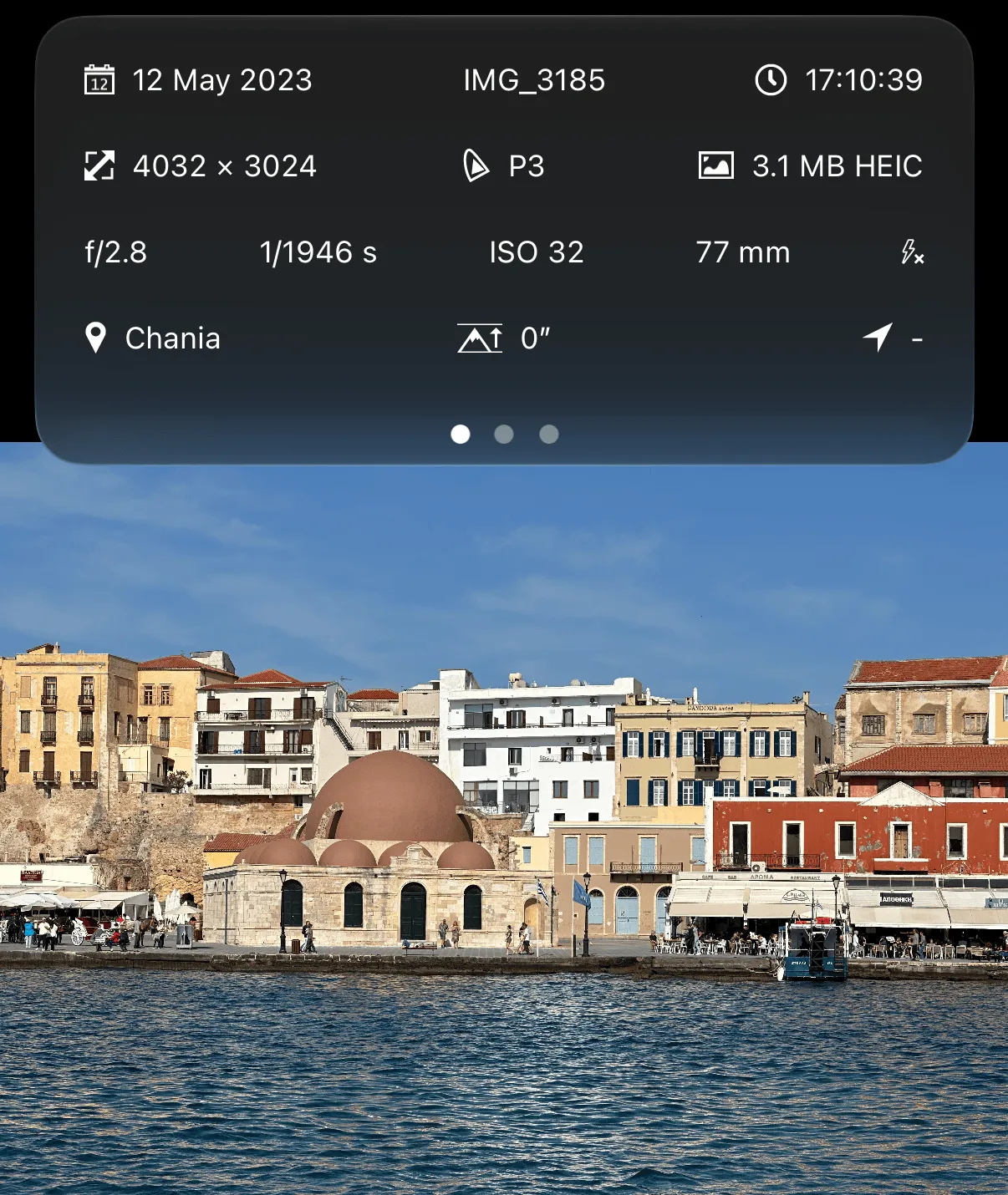
Exposure, lens, format and file name for each photo and video, a map pin for where it was taken, and the edited version next to its original.
Private Lightbox and save locationsPremium
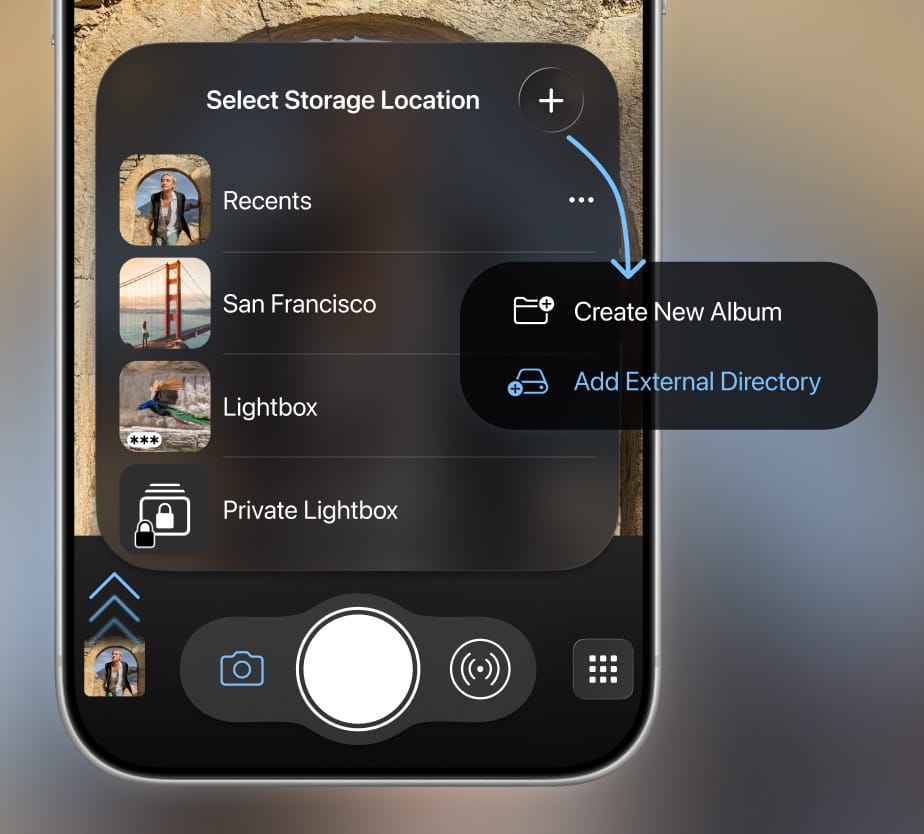
Recents, an album, the Lightbox, the Private Lightbox or an external drive, chosen from the capture screen. The Private Lightbox unlocks with Face ID, Touch ID or your passcode, and its files stay out of the iCloud Photo Library.
ProTimer and timelapse export
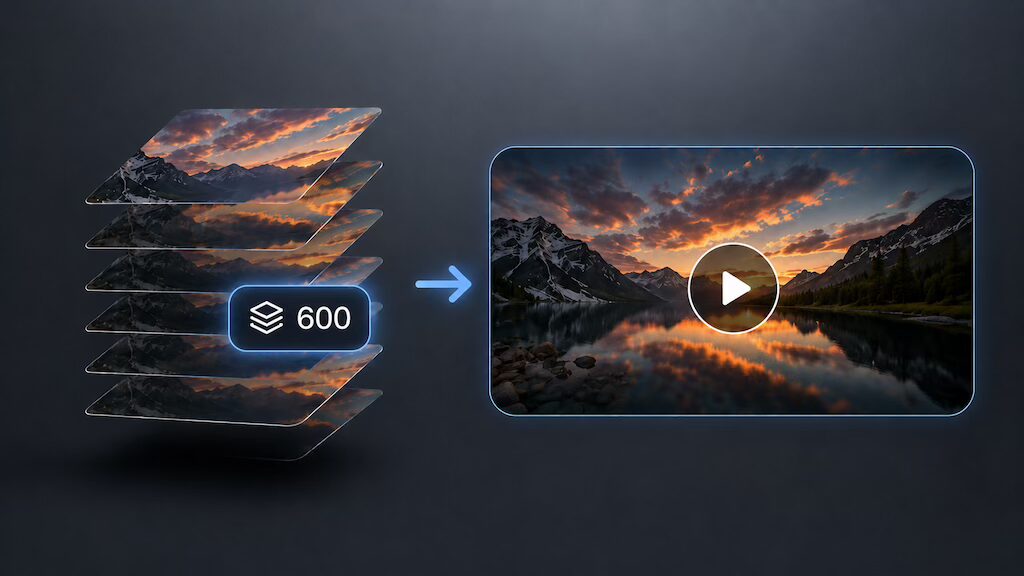
Set interval, count and delay; the shots land in one stack, and “Create Timelapse” exports it as H.264 or HEVC at the frame rate and resolution you choose.
Watch, iPad, Lock Screen, grip
Trigger and preview from Apple Watch (watchOS 26), shoot on iPad with its own layout and windowed multitasking, launch from the Lock Screen or with the Camera Control button, and hold it all with a Fjorden grip.

Exposure bracketing and the Private Lightbox are Premium features. Current plans and prices are listed on the App Store.