
Other
Direct export of the Lightbox files via Finder on MacOS (MacBook, iMac)
Starting with ProCamera v17.3, the Lightbox (ProCamera’s internal media library) gained support for fast and easy file transfers to Mac and Windows computers. It also became accessible from any app that integrates with Apple’s free Files app.
How to transfer files to a Mac using Finder:
 Connect the device to your Mac using a cable. You may be asked to unlock your device with a passcode or to trust the connected device.

 Launch the Finder app on your Mac:

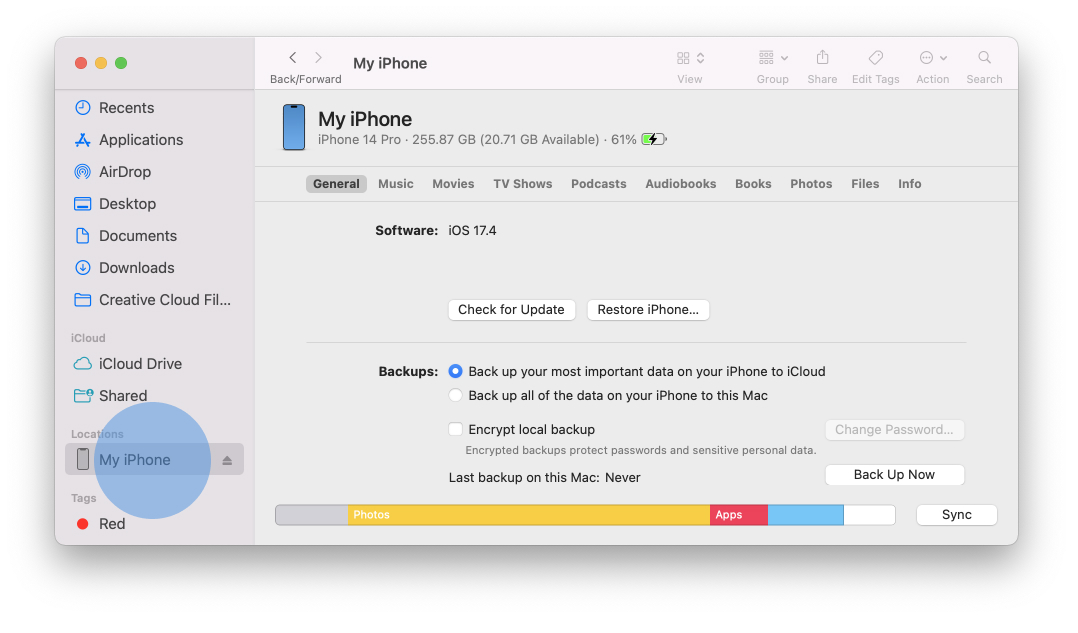
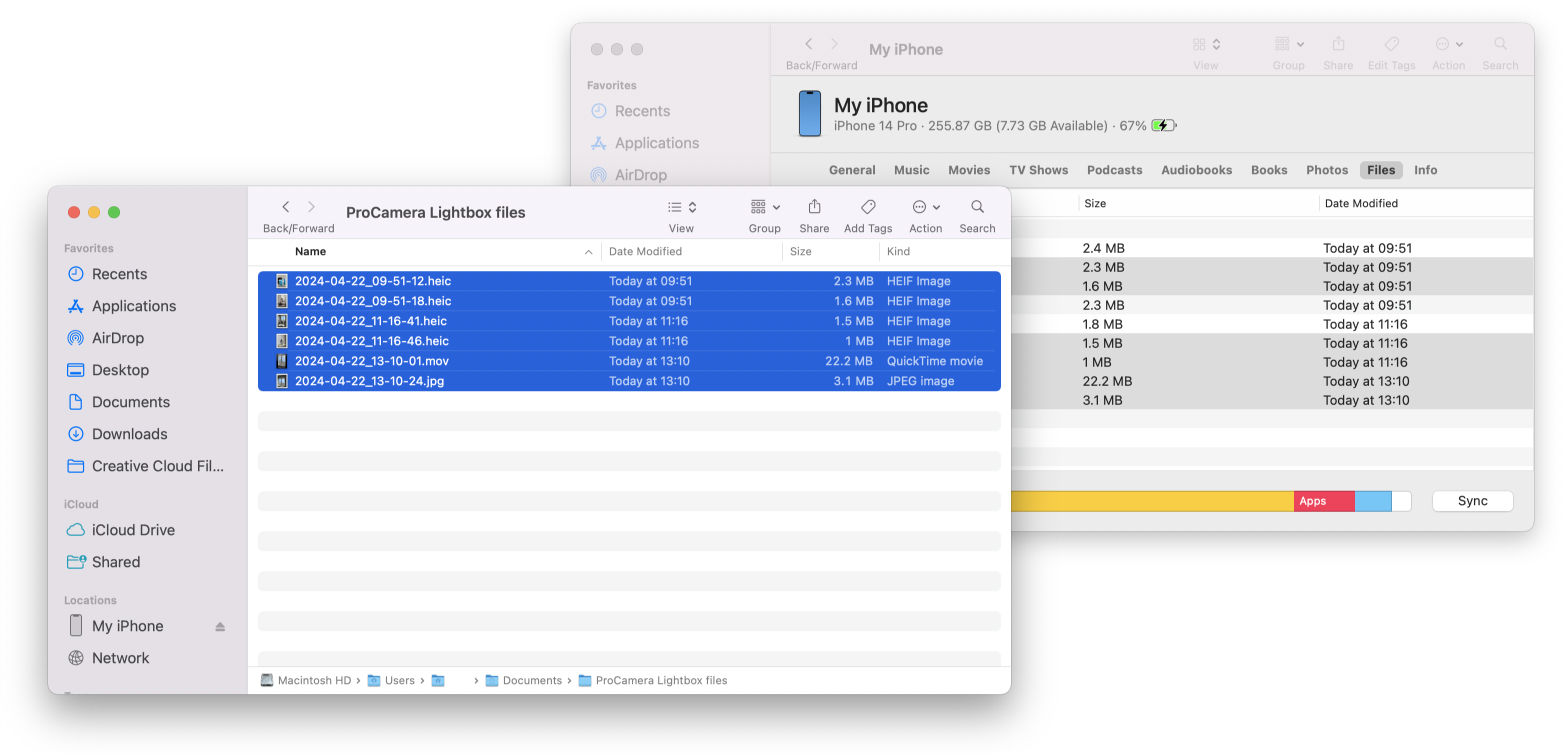
 In the Finder app, select your device ("My iPhone") in the Locations list on the left.
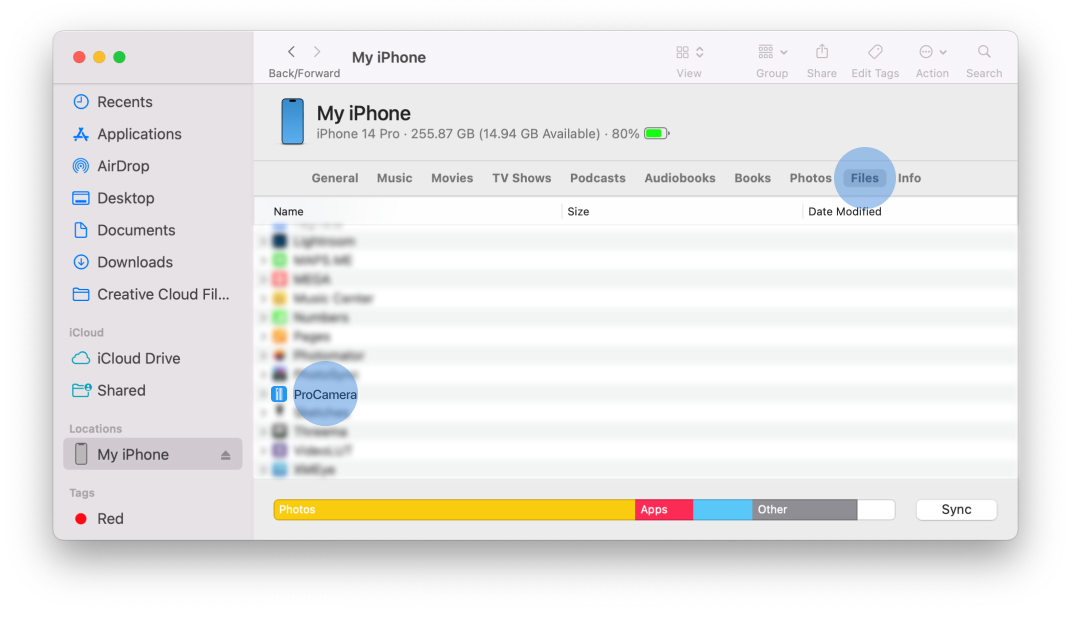
 Open the Files tab. Double tap ProCamera in the list of apps, or tap the arrow symbol to the left of the ProCamera icon in this list. The list of files available for export will appear.
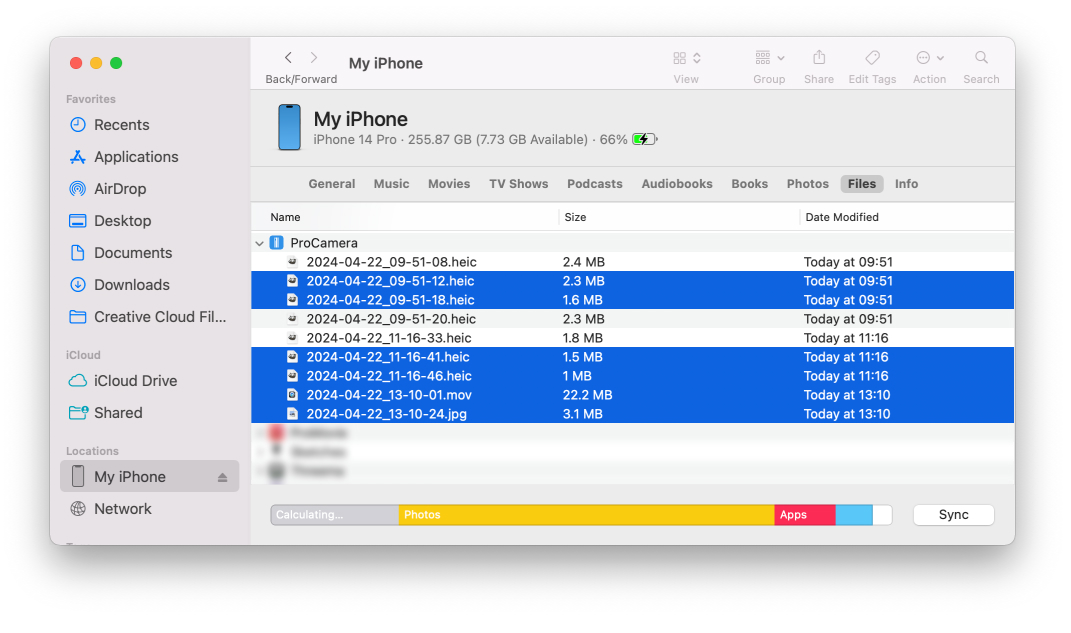
 Select the file(s) you wish to export to your computer.
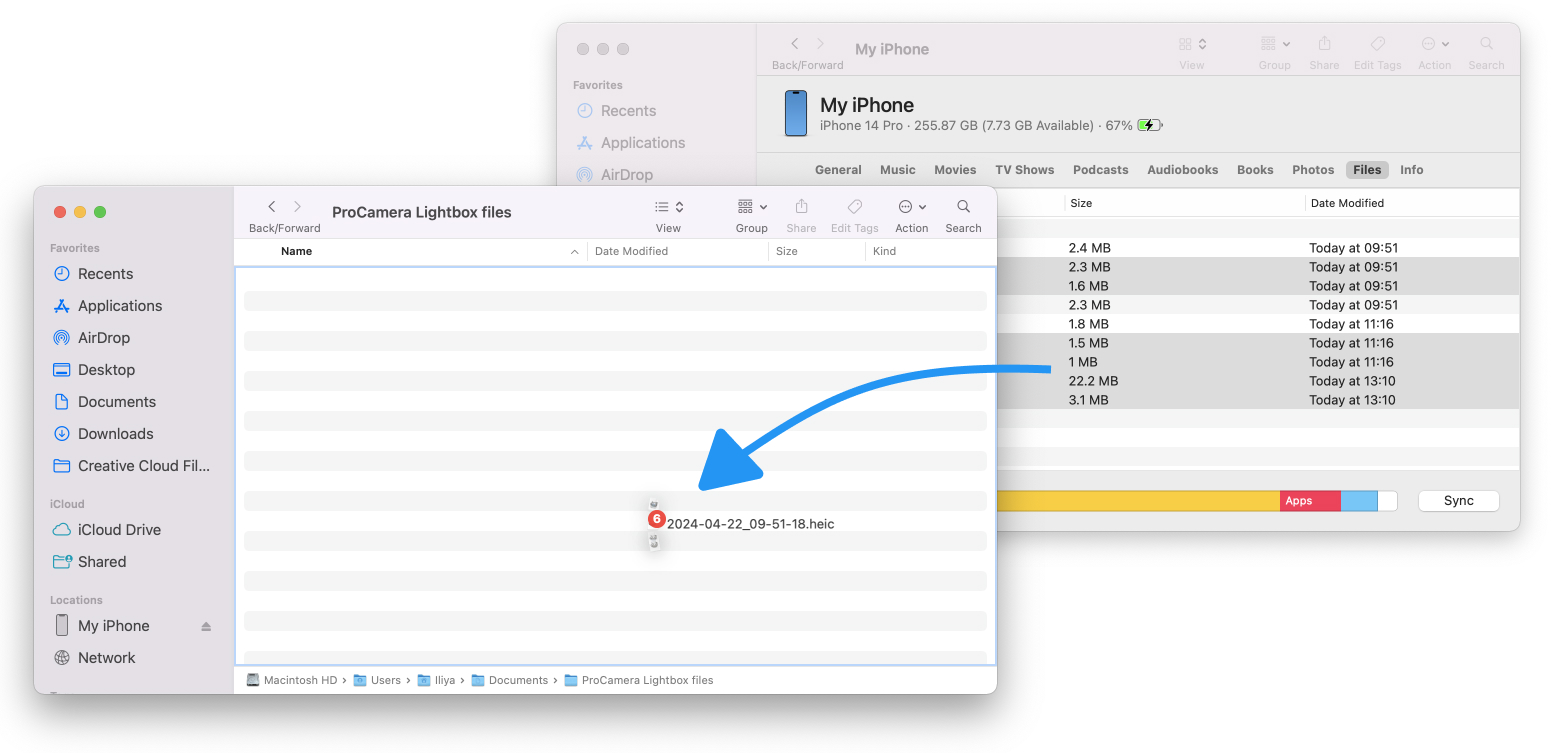
 Drag and drop the selected files to any folder you wish to transfer the files to on your computer.
Warning
Please note that any files you delete in Files are also deleted permanently from your iPhone/iPad.
As an alternative to transferring files directly to your computer, you can first export them from your Lightbox to the iOS media library (“Recents”). Many users prefer to use the Lightbox as temporary storage for large numbers of photos from a shoot, and then export only their best shots to the iOS media library, where they can be synced with iCloud Photos.
Direct export of the Private Lightbox files
Note that safeguarded Private Lightbox files can neither be directly exported to a Mac computer via Finder nor by using the iOS Files app. However, you can unlock the Private Lightbox on your device and export your files wirelessly using AirDrop.
Of course you can also export Private Lightbox files to Lightbox first and then access the files using the iOS Files app, or then transfer the files to a Mac computer directly as described in the current article (to transfer Lightbox files to a Windows computer, use these instructions).
Alternatively, you can export the files to the iOS media library and afterward, export these files using the Image Capture app (or some other third party app). Detailed instructions are located here.
Didn't find an answer? Contact support