
External Hardware
Using an external drive as a storage location for the ProCamera files
- An external drive can be used as a Save Location for both video and photo files in ProCamera.
External drive as a Save Location for Video files
Starting with the iPhone 15 Pro (Max), when an external drive is connected to your iPhone, all videos recorded with ProCamera will be directly recorded to the connected external drive, provided that the connected drive meets the technical requirements.
As soon as you connect a compatible external drive to your iPhone 15 Pro (Max) or any newer Pro (Max) model, the save location for video files will automatically switch to the connected external drive.
On older iPhones or non-Pro models, videos will still be saved to the selected internal iOS or ProCamera folder, even if an external drive is connected.
More information on using an external drive as a Save location for video files can be found here.
External drive as a Save Location for Photo files
An external drive can be selected as a Save Location for photos too — a ProCamera Up premium feature, available on any iPhone that supports an external drive (not just iPhone 15 Pro/Pro Max). Open the Select Storage Location menu, tap the round + button, then choose Add External Directory.
More information on selecting the Save location for the ProCamera files can be found in this article.
Exporting ProCamera files to the external drive
You can also manually transfer any existing file to the external drive at any time. Here's how:
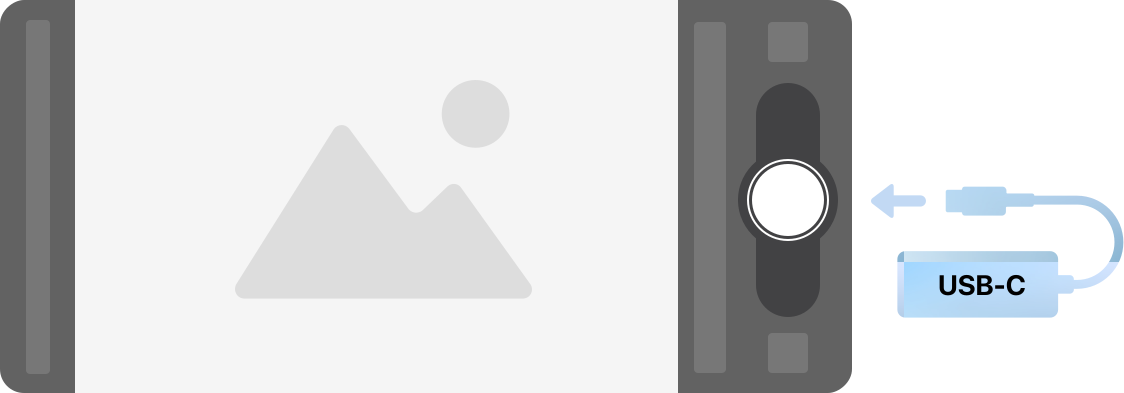
 Connect the external drive to your iPhone. Note that you may need an adapter depending on the iPhone model you are using and the type of external drive you connect.
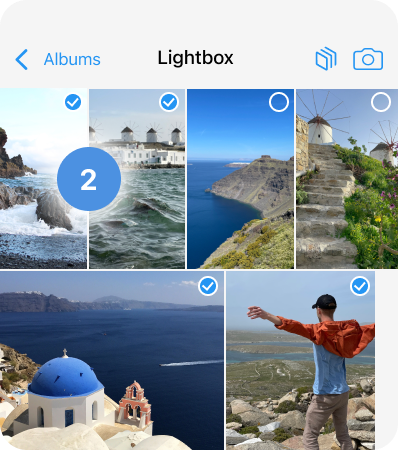
 In ProCamera, select a single file or multiple files you wish to transfer to the external drive.
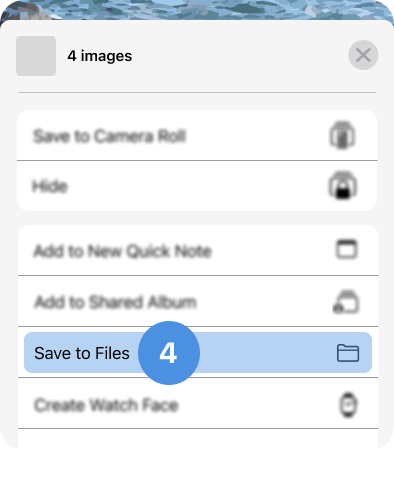
 Tap the Share button (the upward arrow icon) to open the system's share menu.

 Scroll down the share menu and find the Save to Files option. Select this option, and the preinstalled iOS Files app window will appear.
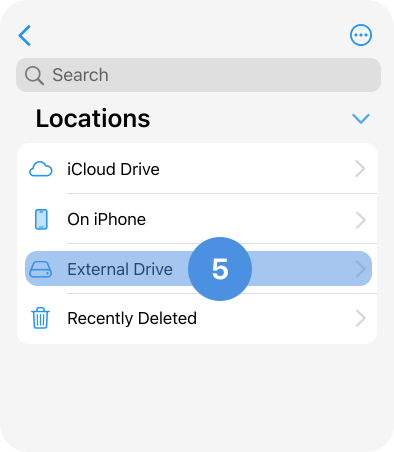
 In the iOS Files app, select the connected external drive and choose (or create) a folder where you wish to save the selected file(s). You might need to use the back button at the top to get to the "Locations" menu.
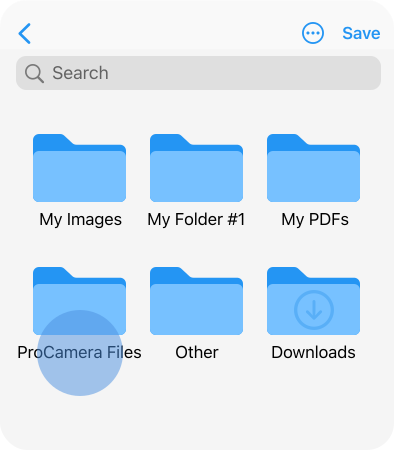
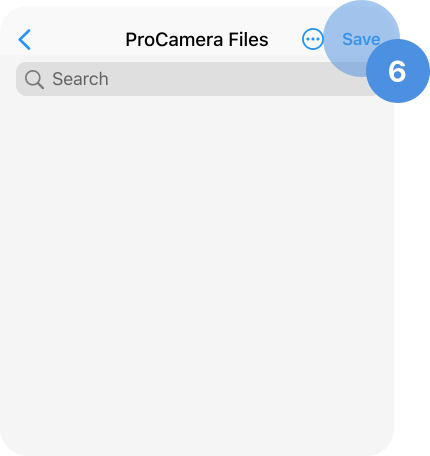
 Tap the Save button. The selected files will be saved in the chosen folder on the external drive.
Other methods for transferring ProCamera files between Save Locations are described here.
Didn't find an answer? Contact support