
Album
Transferring Photos and Videos to an External Storage Device
You can transfer photos and videos to an external storage device with ProCamera. This is useful for backing up files and works well with the internal Lightbox. This article explains the steps to move your files from your device to an external drive.
How to transfer files to an External Drive
 |
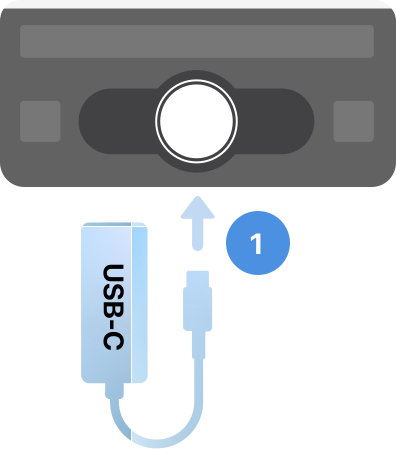
Connect the external drive to your iPhone. See Connecting an External Drive for supported drives and the technical requirements. | |
 |
||
 |
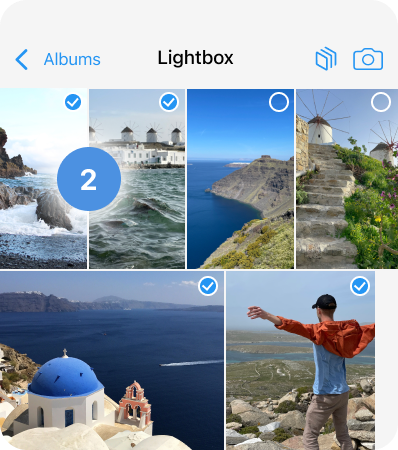
Select the files you want to transfer. To transfer several at once, tap the Multi-Select button in the top bar, then swipe across or tap the thumbnails one by one to choose them. | |
 |
||
 |
Tap the share icon in the bottom left corner. | |
 |
||
 |
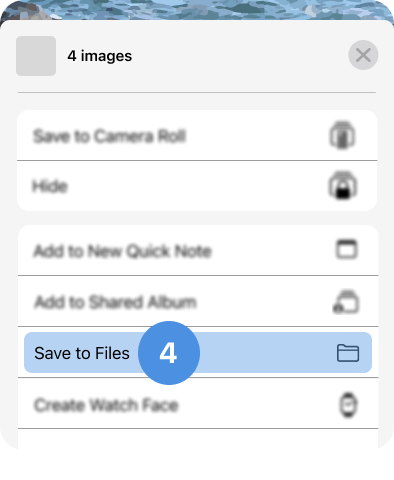
Scroll down and select the Save to Files option. A sheet from the iOS Files app will appear. | |
 |
||
 |
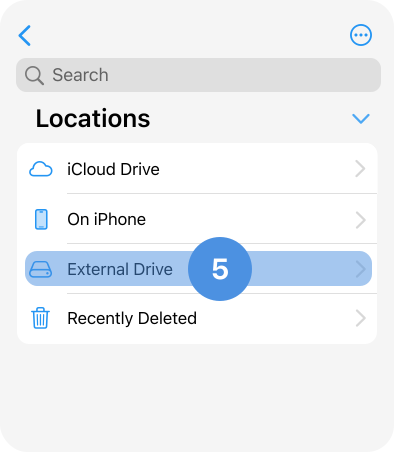
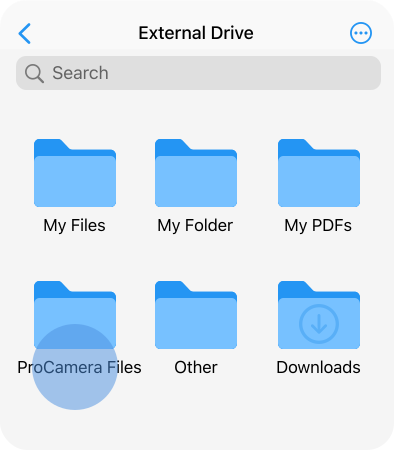
In the iOS Files sheet, select the connected external drive and choose (or create) a folder where you want to store the selected file(s). |
|
|
||
 |
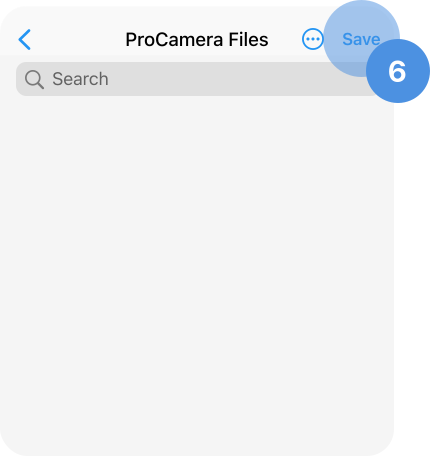
Tap the Save button. | |
 |
Saving videos and photos to an External Drive
With a recent iPhone Pro (iPhone 15 Pro or newer), videos can be recorded directly to a connected external drive — just connect a compatible drive that meets the technical requirements. Storing photos directly to an external drive is also available as a premium feature.
To learn more about video recording to an external drive in ProCamera, check the following article.
Didn't find an answer? Contact support