
Photo
White Balance. Adjusting WB and using WB presets
ProCamera gives you full manual control over white balance (WB): you can adjust color temperature and tint, use WB presets, and extend the color-temperature range.
White Balance settings and presets can only be activated and used on manual M or semi-automatic SI mode. In auto A mode, the WB button has reduced functionality. To learn how to change exposure modes, follow this instruction.
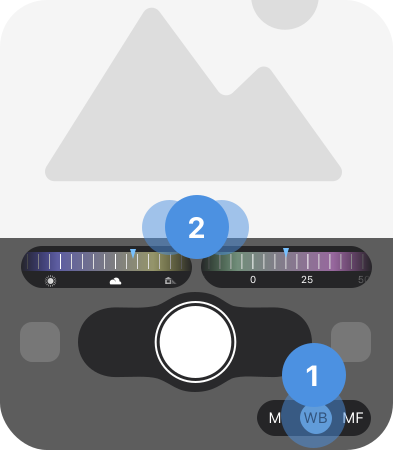
Dialing in a custom White Balance:
- Tap the WB button on the Capture Screen (inside the Manual Controls panel).
- Set the desired Color Temperature (left dial) and Tint (right dial).
Using default White Balance presets:
- Long-press the WB button to open the white balance menu.
- Select the desired preset (e.g. "Daylight"), tap it to activate it.
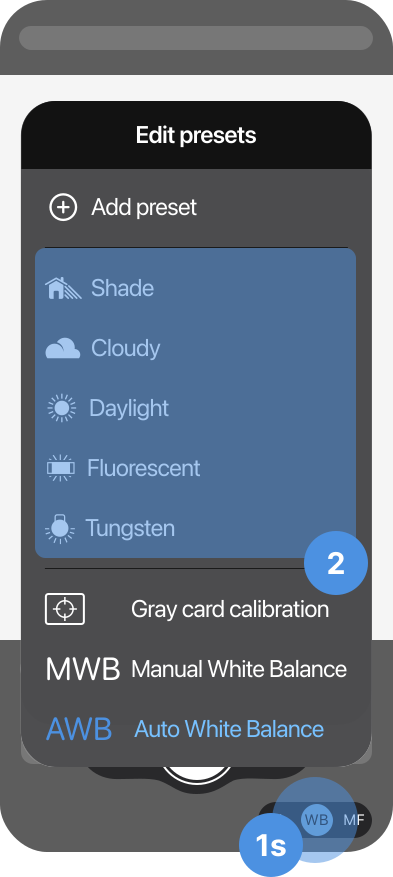
To add and save custom White Balance presets, follow the instructions in this article.
Extending the color temperature range
The Manual White Balance tool has a default color-temperature range down to 2000 K (Kelvin). In ProCamera, you can lower the color temperature to 1000 K for scientific and artistic purposes such as infrared photography. To learn how, see this article.
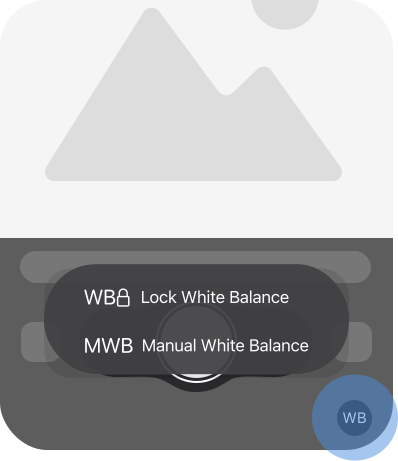
Auto A mode WB settings.
In A mode, pressing the WB button enables the following options:
 WB lock saves the current temperature and tint values for subsequent captures.
Manual White Balance lets you set White Balance by hand. Once you tap this option, the app switches the exposure mode from auto A to semi-automatic SI or manual M mode and lets you adjust the desired Color Temperature and Tint values.
Didn't find an answer? Contact support