External Hardware
Fjorden Grip
The Fjorden camera grip manufactured by Leica Camera AG can be used to control ProCamera on your iPhone or iPad.
How to pair the Fjorden Grip with ProCamera?
- Turn on the Grip by pressing the physical Shutter Button. The status LED on the back of the Grip will begin to blink.
- Open ProCamera and go to Settings > Fjorden Grip. On this settings page, turn on the “Enable connection” switch.
- Grant ProCamera permission to use Bluetooth. This is necessary for establishing a wireless connection between the Grip and your iPhone or iPad.
- Once your Grip shows up under “Grips Nearby”, ProCamera will auto-connect to it.
If the Grip does not show up in ProCamera, it might be paired with another device and needs to be unpaired first. Alternatively, you can perform a reset as described below and pair the Grip again with your iPhone.
How to turn on the Fjorden Grip?
To activate the Grip, simply press the Shutter Button on the grip. The Status LED will light up for a few seconds. If the Grip has been previously paired with your device, it will automatically connect when turned on. You can always check the connection via ProCamera Settings > Fjorden Grip.
Note that the Grip automatically enters standby mode after 5 minutes of inactivity.
How to reset the Fjorden Grip?
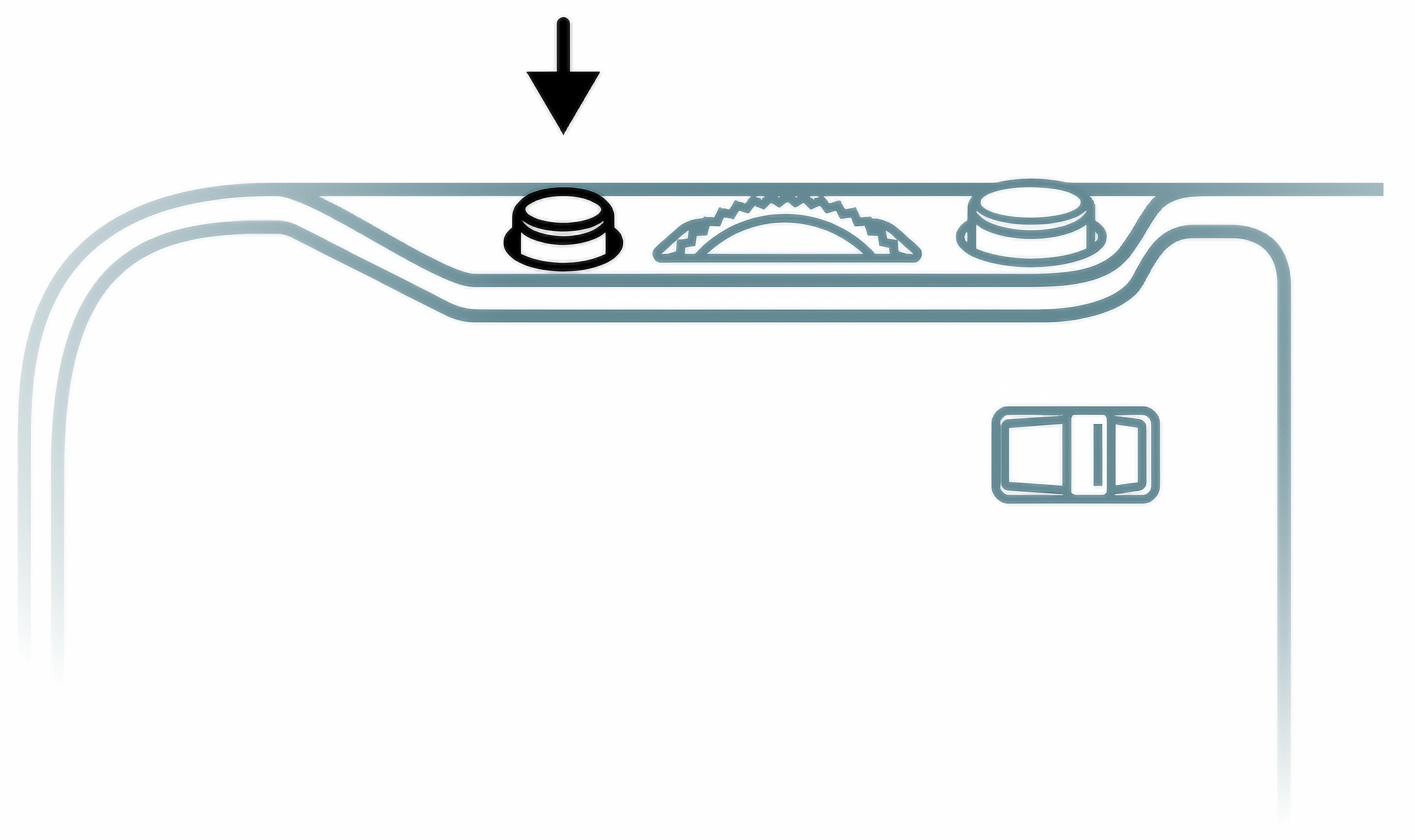
If you want to un-pair your Grip from your iPhone or iPad and pair it with another device just press both the Shutter Button and Function Button for 5 seconds, until the Status LED starts to blink. Afterwards, start the pairing process again as described above.
How to control ProCamera with the Fjorden Grip?
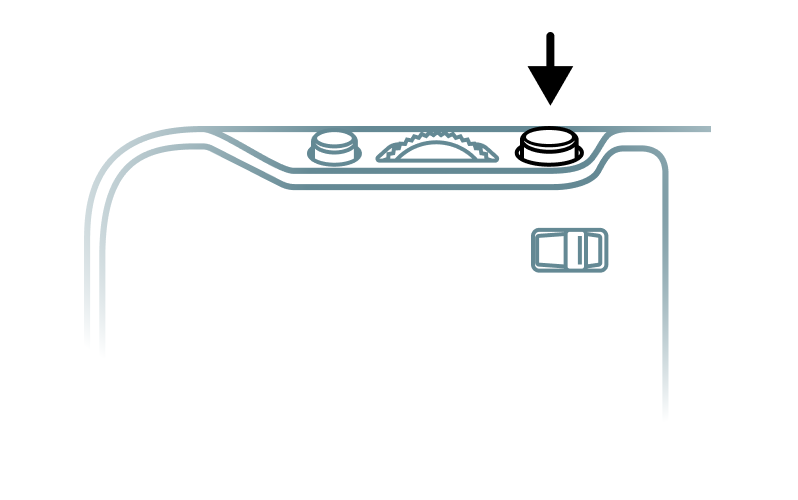
Half-press the Shutter Button to lock focus and exposure (except for Video mode), like on a traditional camera.
Full-press the Shutter Button to capture a photo. After the capture, everything is unlocked again.
To adjust focus and exposure, tap anywhere on the viewfinder.
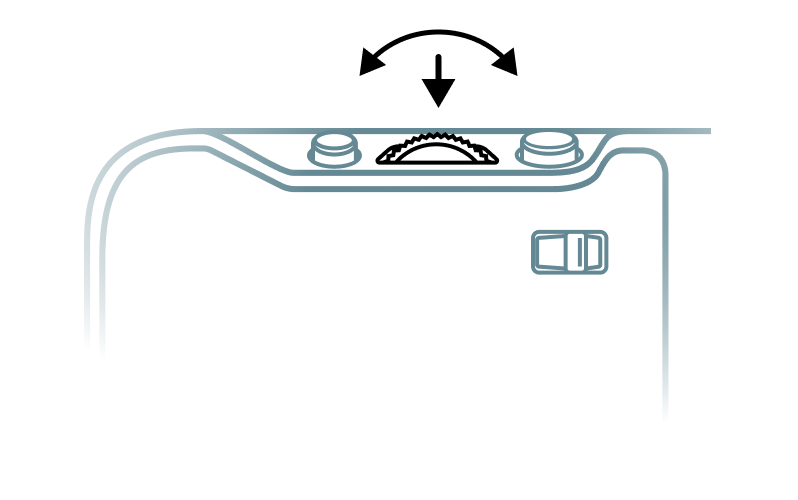
To use the wheel of the Fjorden Grip for controlling the camera, you must first make sure that a dial is visible in ProCamera. On the ProCamera capture screen, tap the EV button on the top bar to activate the EV dial. Then, you can use the wheel to control the EV dial.
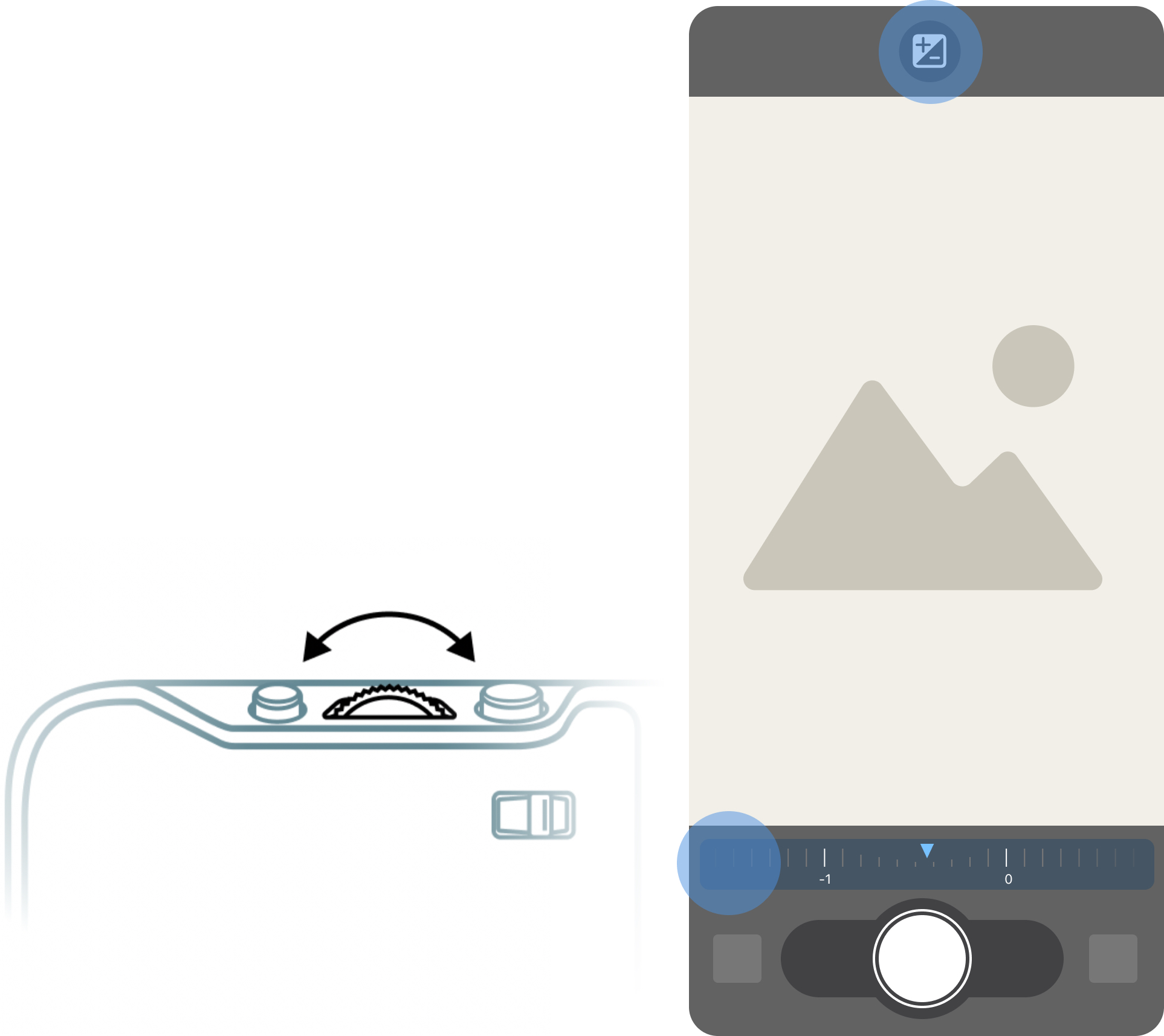
To control the camera manually, tap one of the controls in the Manual Controls panel, such as M/SI, WB, or MF. Once selected, you can use the wheel to control the dial. If two dials are visible at the same time, pressing the wheel will toggle between them.
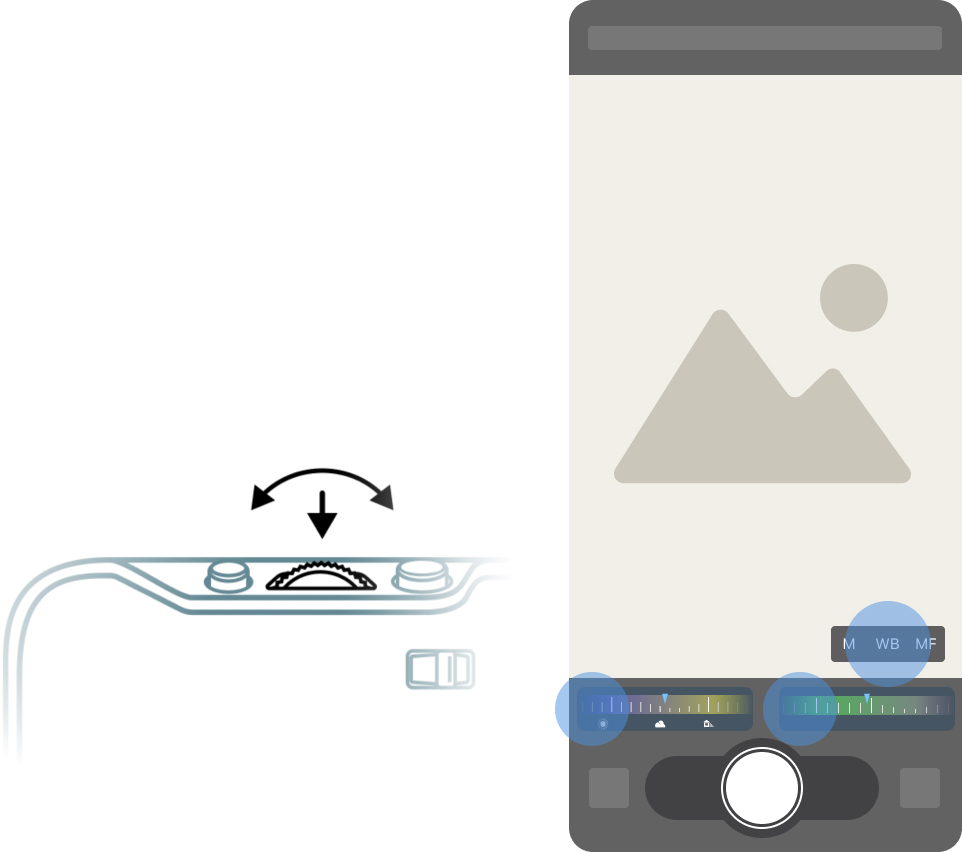
Additionally, focus peaking and exposure warnings function when adjusting focus and exposure via the Fjorden Grip wheel.
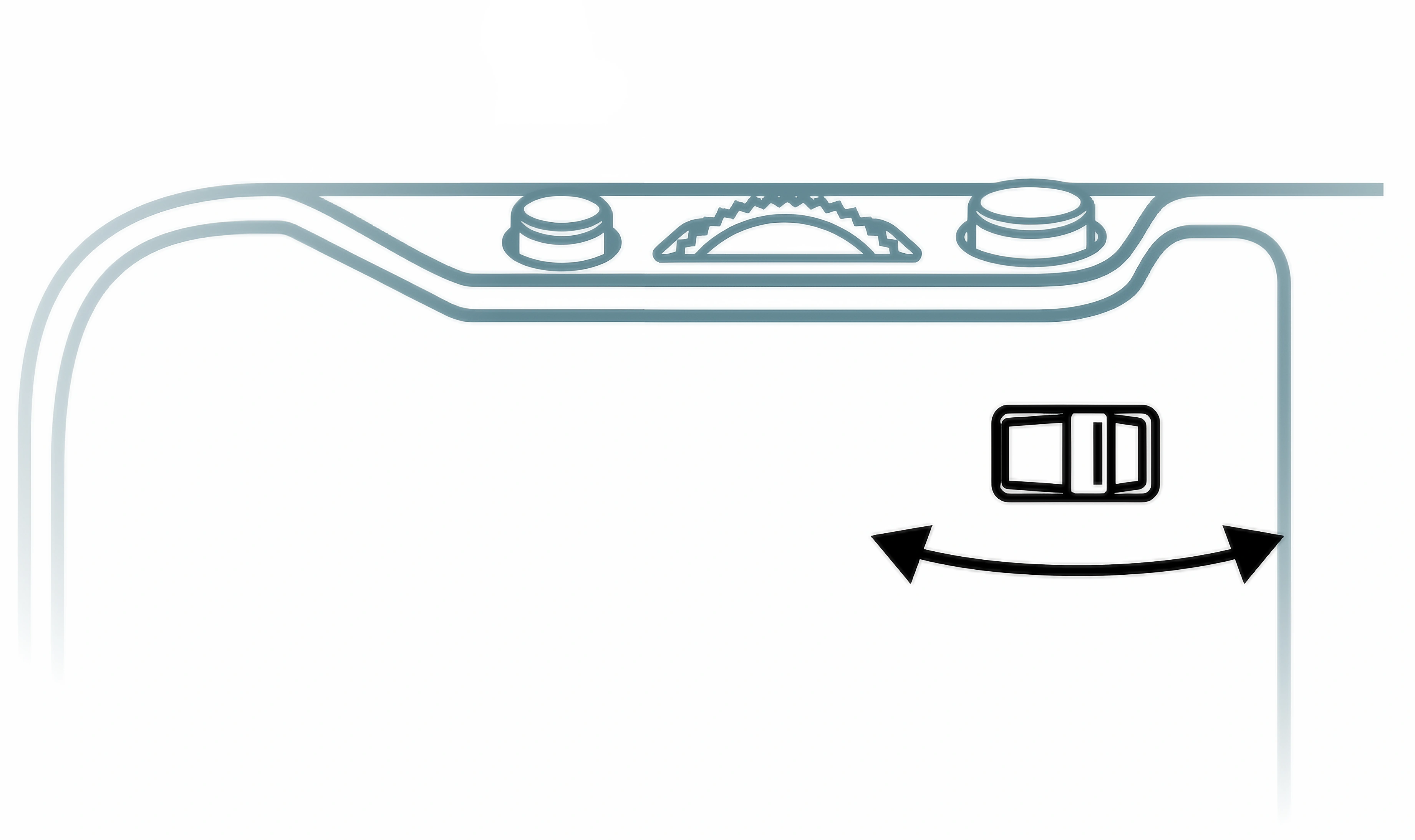
Use the lever on the back of the Grip to zoom in and out. Quickly push the lever left/right to switch lenses instead of zooming (if more than one lens is available).
Press the Function Button to trigger ProCamera's Second Shutter. In ProCamera's Control Panel, you can assign Self-Timer, Anti-Shake, or Quad-Shot as your Second Shutter function.
Fjorden Grip with ProCamera Lock Screen Camera
When launching ProCamera from the Lock Screen without unlocking your iPhone (via passcode, Face ID, or Touch ID), only the shutter button on Fjorden Grip is functional. Other controls are disabled.
This behavior is expected, as iOS security restrictions limit Bluetooth accessory support in Lock Screen Camera extensions.
Once you unlock your iPhone, the full ProCamera app opens instead of the Lock Screen Camera extension, and all Fjorden Grip controls become available.
For further information on the Grip itself, please have a look at Fjorden's official Help Center.
Didn't find an answer? Contact support