
Photo Editing
Saving edited images to your Photo Library
When you finish editing a photo in the ProCamera Editing Studio, tap the Save button (top right corner) to save it — or tap and hold the Save button for more control over how it's saved. This article compares your saving options:
 Simply tap the Save button to save the edited photo using your default saving option (see below to set it).
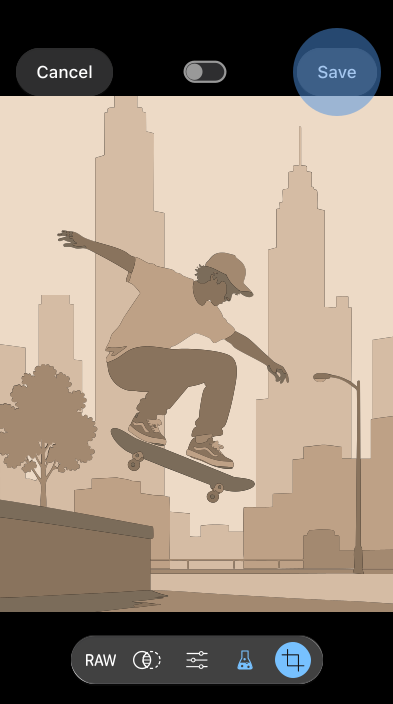
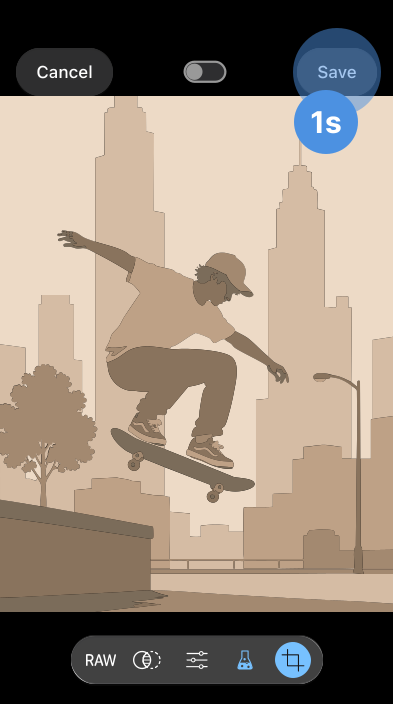
Alternatively, tap and hold (1 sec.) the Save button to choose a saving option for this photo only, overriding your default:
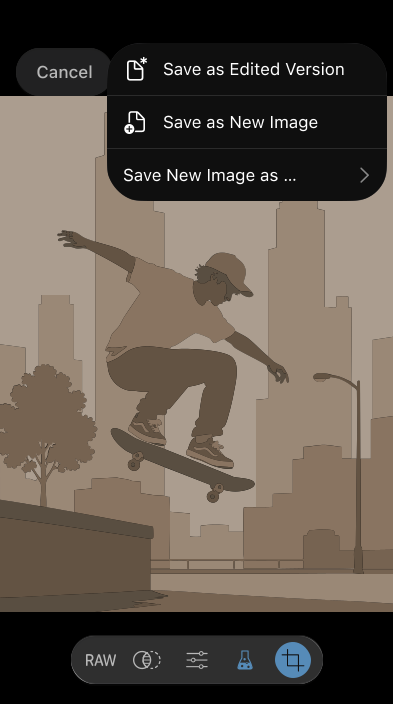
Available saving options:
 |
Save as Edited Version | Combines the original and edited photo into a single Camera Roll entry. You can always reopen the photo in the Editing Studio to adjust your edits or revert to the original. |
 |
Save as New Image | Creates a separate copy of the original with your edits applied. You'll have two images next to each other in the gallery — the untouched original plus the edited copy — and the edits on the copy can't be undone (as it's then totally separate from the original) |
 |
Save New Image as... | Same as "Save as New Image" from above, but lets you choose the file format for the copy: JPEG, HEIC, HEIC HDR 10 bit, TIFF, TIFF HDR 16 bit, PNG, or HDR Video Clip. |
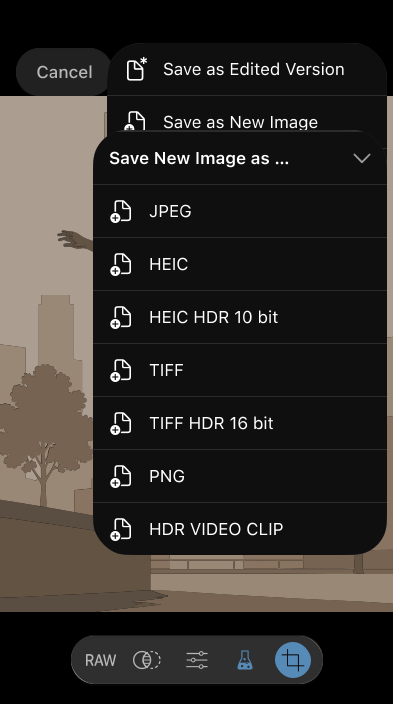
Setting a default Save button action
A quick tap of the Save button always uses your default saving option. Set that default here:
- Open ProCamera Settings.
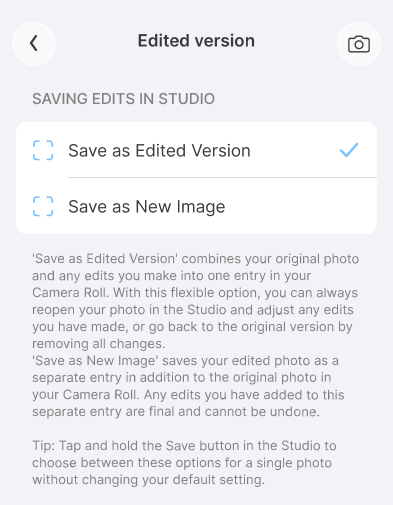
- Go to Edited Version > Saving Edits in Studio.
- Choose your default (see above for what each does):
- Save as Edited Version
- Save as New Image
When editing in Lightbox or Private Lightbox, edited photos are always saved as new images.
Didn't find an answer? Contact support