
Video
Recording videos to external USB-C drive
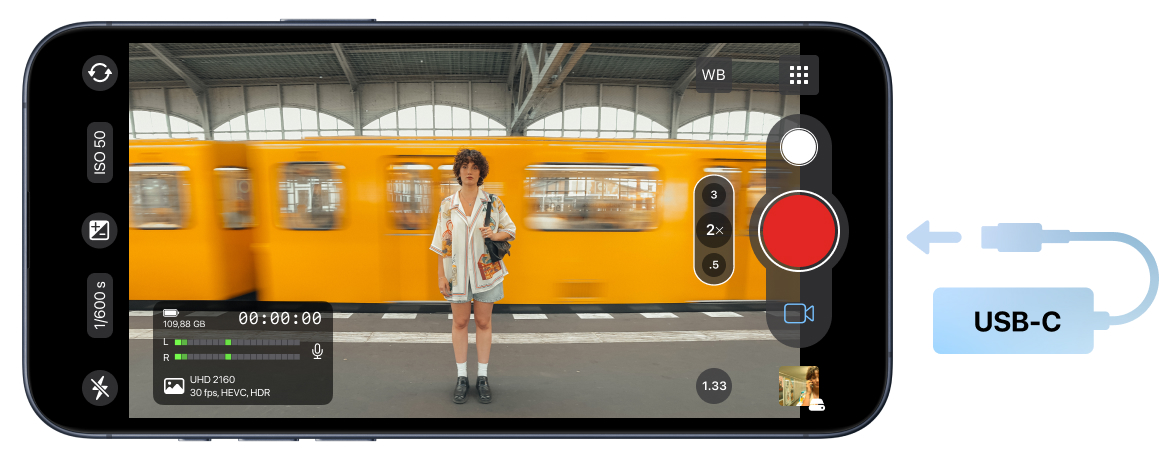
ProCamera lets you record video directly to an external USB-C storage device (starting with the iPhone 15 Pro and Pro Max). It supports all available video codecs for external recording — ProRes, HEVC, H.264 — while the native iOS Camera app only supports ProRes recordings to an external drive.
Once your external USB-C drive is connected and meets the technical requirements, all videos, regardless of their settings, record directly to the external drive.
To record directly onto an external USB-C drive, simply connect the storage device to your iPhone. Once ProCamera recognizes it, all videos recorded will automatically save to it.

When the drive is correctly connected and ready for use, an indicator appears on the Capture Screen (on top of the album thumbnail).

To switch back to recording on the iPhone's internal storage, disconnect the external storage device. Ensure that all file transfers or recording to the external storage device are complete at this point — do not remove the device while it's actively being used.

External storage device requirements
- The drive must be formatted in exFAT for recording (APFS works for general file transfers, but not for recording). Devices with password encryption are not supported.
- Use a USB 3.0 cable capable of at least 10 Gbps for optimal performance. The app will notify you if the cable is not supported for video recordings.
- The drive must support a sufficiently high write speed to save the video during recording. The app will notify you if it's not supported for video recordings.
- To record 4K at 60 fps ProRes, the drive must support at least 220 MB/s write speed and a maximum power draw of 4.5 watts.
A universal USB-C card reader with a high-speed SD card is also a viable option.
Saving photos directly to external drives
Direct-to-drive saving for photos is also available — as a ProCamera Up premium feature, and unlike video recording, on any iPhone that supports an external drive (not just iPhone 15 Pro/Pro Max). If your photos and videos are already saved to your iPhone's internal storage, you can transfer them to an external drive afterward using the Files app.
External drives power supply
If your iPhone fails to recognize a connected external storage device, particularly a hard drive, the most likely issue is insufficient power. Many external drives require an external power source when used with an iPhone. If your external hard drive doesn't have its own power supply and your iPhone has a USB-C connector, using a powered USB hub can help establish a successful connection.
Using an external storage device with older iPhone models
Direct video recording to external USB-C drives is only supported on iPhone 15 Pro/Pro Max. On older iPhones, external drives can only serve as an indirect storage location — after capture, you can share files from ProCamera to the external drive via the "Save to Files" option.
4K ProRes at 60fps requires an external drive
Recording 4K ProRes video at 60fps (frames per second) is only possible with a supported external USB-C drive connected. It's not possible to record 4K at 60 fps ProRes directly to the iPhone's internal storage.
Didn't find an answer? Contact support