
Album
Exporting Lightbox files to the iPhone media library
If you delete ProCamera from your device, everything stored in its internal Lightbox and Private Lightbox folders is deleted too. To prevent this, export your files to the iPhone media library (Camera Roll / Recents) — or to another device — before you uninstall. Here's how to export (Private) Lightbox files to your iPhone media library.
If you already deleted photos or videos from Lightbox or Private Lightbox — or deleted ProCamera without exporting first — you might still be able to recover them if you have an iPhone backup file. Follow the steps in this article to recover your lost photos and videos.
How to transfer files from Lightbox or Private Lightbox to Camera Roll:
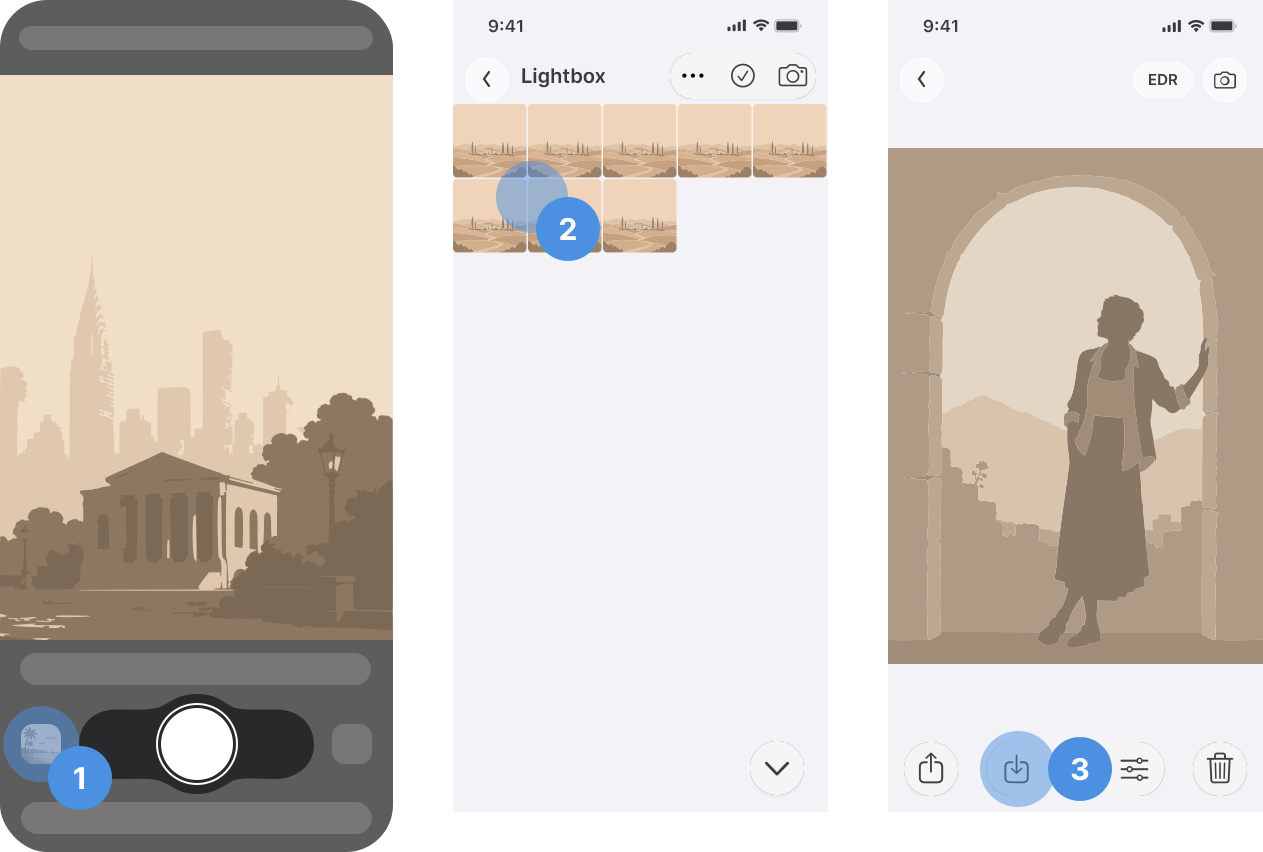
- On the ProCamera Capture Screen, tap the Media Library button in the bottom left corner.
- Choose a picture from either the Lightbox or Private Lightbox that you want to transfer to the Camera Roll. To select and transfer multiple pictures, see the tip below.
- Tap the Export to iOS Media Library icon to export your photos and videos.
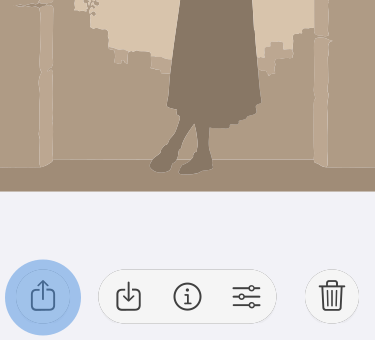
Another option is to tap on the iOS sharing icon located in the bottom left corner. Apart from exporting selected files to your iOS Media Library, tapping this button also allows you to add them to a shared album, save them to Files, share them via AirDrop, upload to other apps/services, or send them via messaging apps. Note that this option has a limit of sharing 150 items at once.
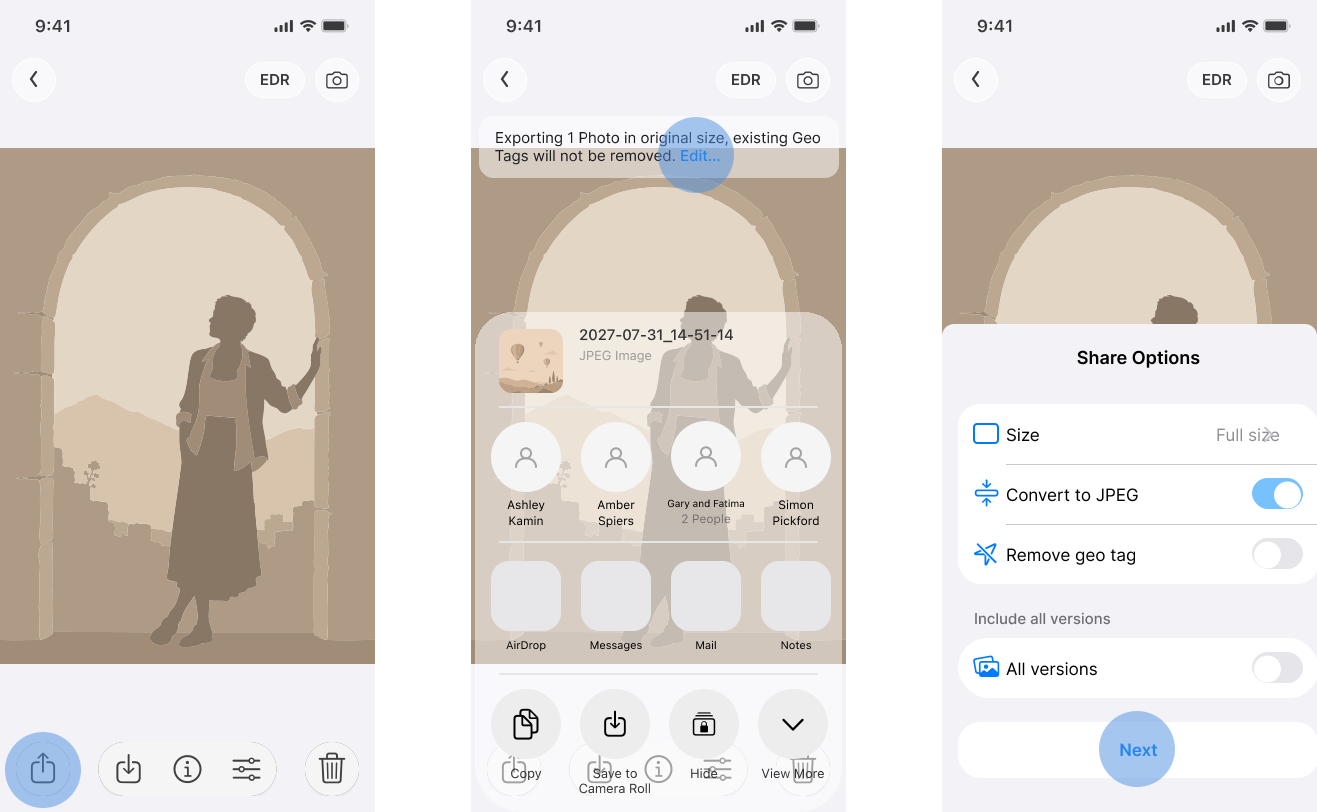
Setting additional share parameters:
When you export files using the Share button, there are optional export adjustments available. These only affect the shared files, not the ones saved on your device. Tap the Share button and then tap Edit... in the info box to adjust sharing parameters:
- Size - You can choose to share a file in its original size or in a reduced size.
- Convert to JPEG - For maximum compatibility, you can choose to convert your image to JPEG before exporting or sharing it.
- Remove geotags - This option allows you to share or export a file without sharing the embedded geo data.
Tap Next to apply changes once you've made all necessary adjustments.
For more information about the Share Options menu parameters, read this article.
How to select and share multiple photos and videos at once:
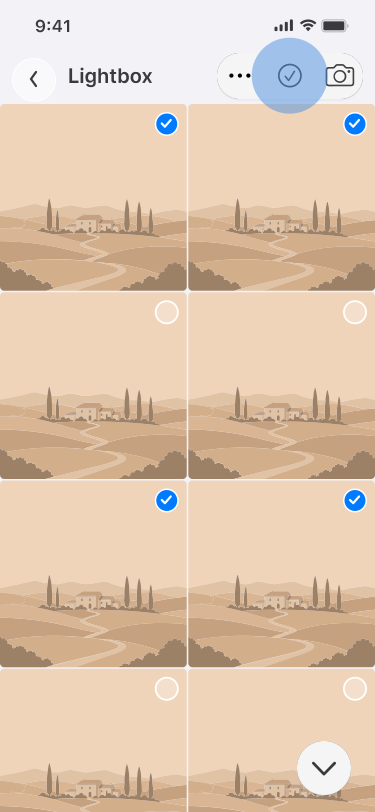
To export several images simultaneously, tap the Multi-Select button. To select files, swipe over multiple thumbnails or tap them one by one.
Looking to export ProCamera files from the iPhone media library (Camera Roll/Recents) to your computer? See the guides for Mac or Windows.
Didn't find an answer? Contact support