
Album
Troubleshooting in case Lightbox Migration has failed
We regularly update and optimize ProCamera’s internal libraries to improve performance, compatibility, and overall functionality. Some of these enhancements require a one-time automatic migration of your existing data to take advantage of the latest improvements.
In the rare event that an issue occurs during the migration, there is a simple and reliable fix you can perform yourself, as long as your Private Lightbox does not contain any files:
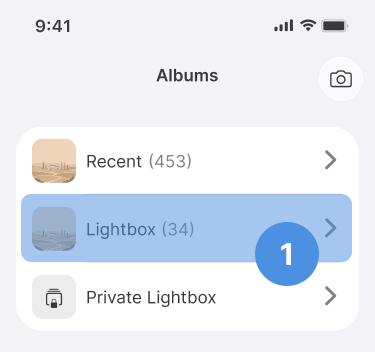
 First, transfer all files from Lightbox using one of the following methods:
 |
Transfer all files in your Lightbox directly to your Mac via Finder app or to a Windows computer via the Apple Devices app or iTunes. |
||
 |
Use the iOS Files app to transfer all items in your Lightbox to a folder outside of ProCamera on your iPhone, iCloud or an external drive. |
 Delete ProCamera after reading the warnings below and after verifying that all files were transferred successfully.
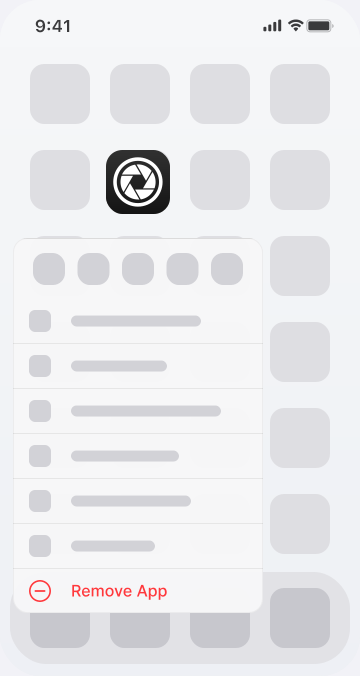
 Re-install ProCamera from the App Store.
Warning
Note that if you delete ProCamera, all files in the internal ProCamera folders (Lightbox, Private Lightbox) will be deleted with the app.
Before deleting or reinstalling ProCamera, make sure you have exported files from the Lightbox successfully. For files in the Private Lightbox see below.
Warning for Private Lightbox
If you have files in the Private Lightbox and an error occurred during migration, please contact our support team from within the app. Due to the protection of the files in Private Lightbox additional steps need to be taken.
The methods described above are not suitable for exporting Private Lightbox files. You need to export these files to the Lightbox first.
Didn't find an answer? Contact support