
Album
Lightbox - recover deleted photos and videos from a backup
Lightbox and Private Lightbox are internal media libraries of ProCamera and are not part of the general iOS media library. If ProCamera is deleted, the contents inside Lightbox and Private Lightbox are also deleted.
Warning
Before deleting or reinstalling ProCamera, make sure you have exported the files you wish to keep from the Lightbox and Private Lightbox folders inside ProCamera.
To learn how to export files from the Lightbox and Private Lightbox to your iOS media library, read this article.
To find out how to export files from the Lightbox and the Private Lightbox to your computer, read these articles: Export to Mac, Export to Windows.
However, if you have accidentally deleted photos or videos from Lightbox or Private Lightbox, or if you have deleted the ProCamera app itself (for instance, in the process of reinstalling the app) without having exported the content of Lightbox or Private Lightbox to the camera roll/Recents first (iOS media library), you can try the following:
- If you have lost your ProCamera app data but still have an iPhone backup, you may be able to recover it using dedicated third-party software. Please do not create a new backup first, as it could overwrite your existing backup. For example, if your previous backup still contains the photos and videos stored in the Lightbox but a new backup does not, creating a new backup could replace the one you actually need.
At the time of writing, there are several software options available that can restore files from an iPhone backup, such as iPhone Backup Extractor, iMazing, Dr. Fone, and iBackup Viewer. They all work on the same principle, so it's up to personal preference. We are not affiliated with any of these app developers. In this article, we'll be using the iBackup Viewer app for macOS.
 Download and install a software like iBackup Viewer.
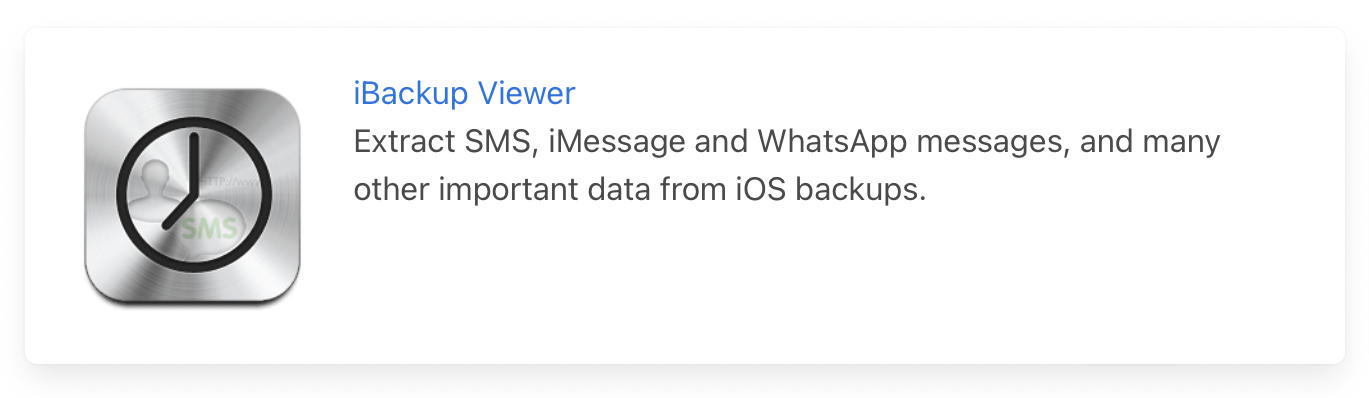
 To find saved iPhone backups, open iBackup Viewer app and allow the program to scan your computer. You can also specify the directory of an external device where your iPhone backup is stored.
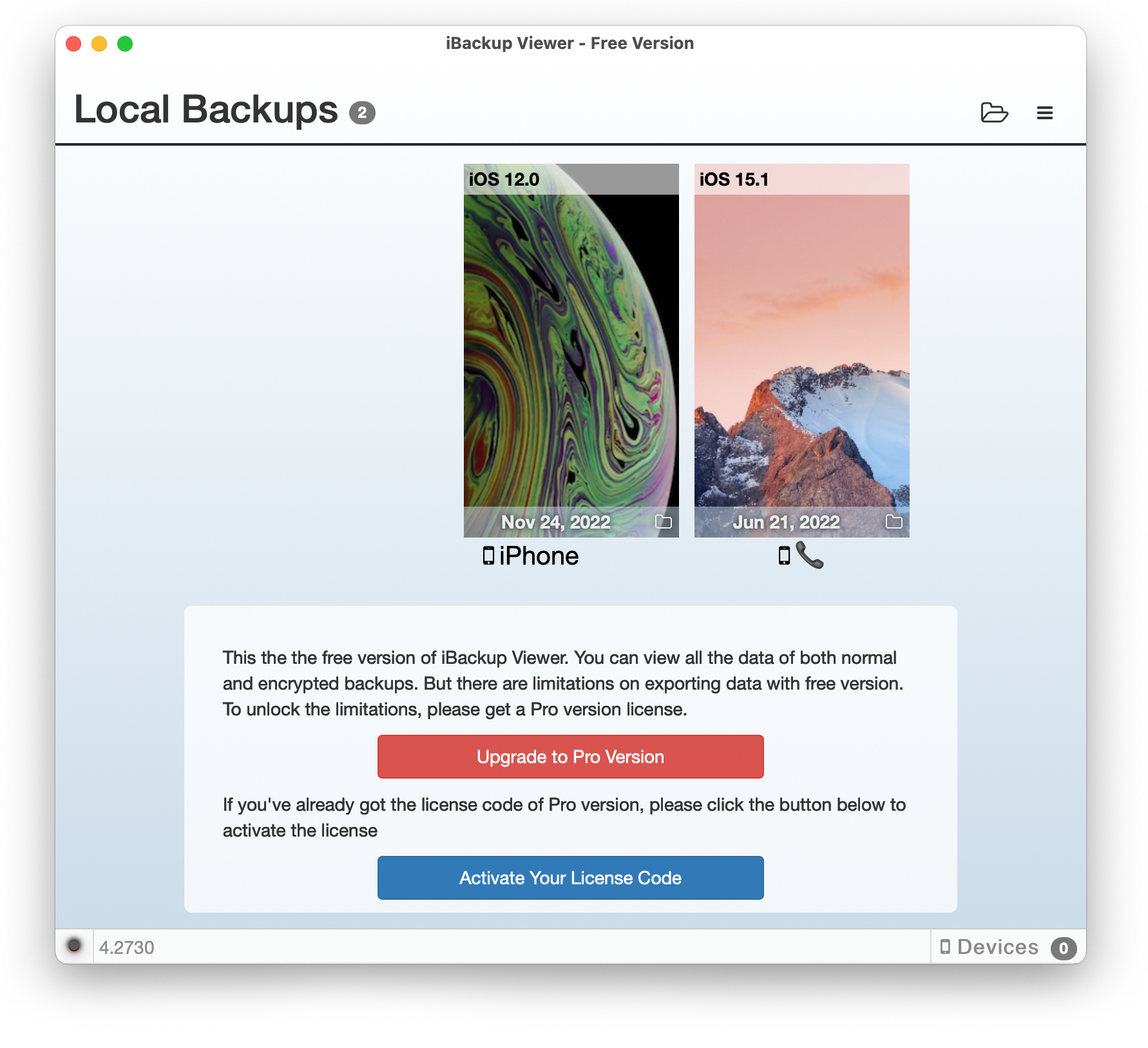 |
 Once the scanning is complete, choose the most recent backup (with the Lightbox and Private Lightbox data still in it) and click on it.
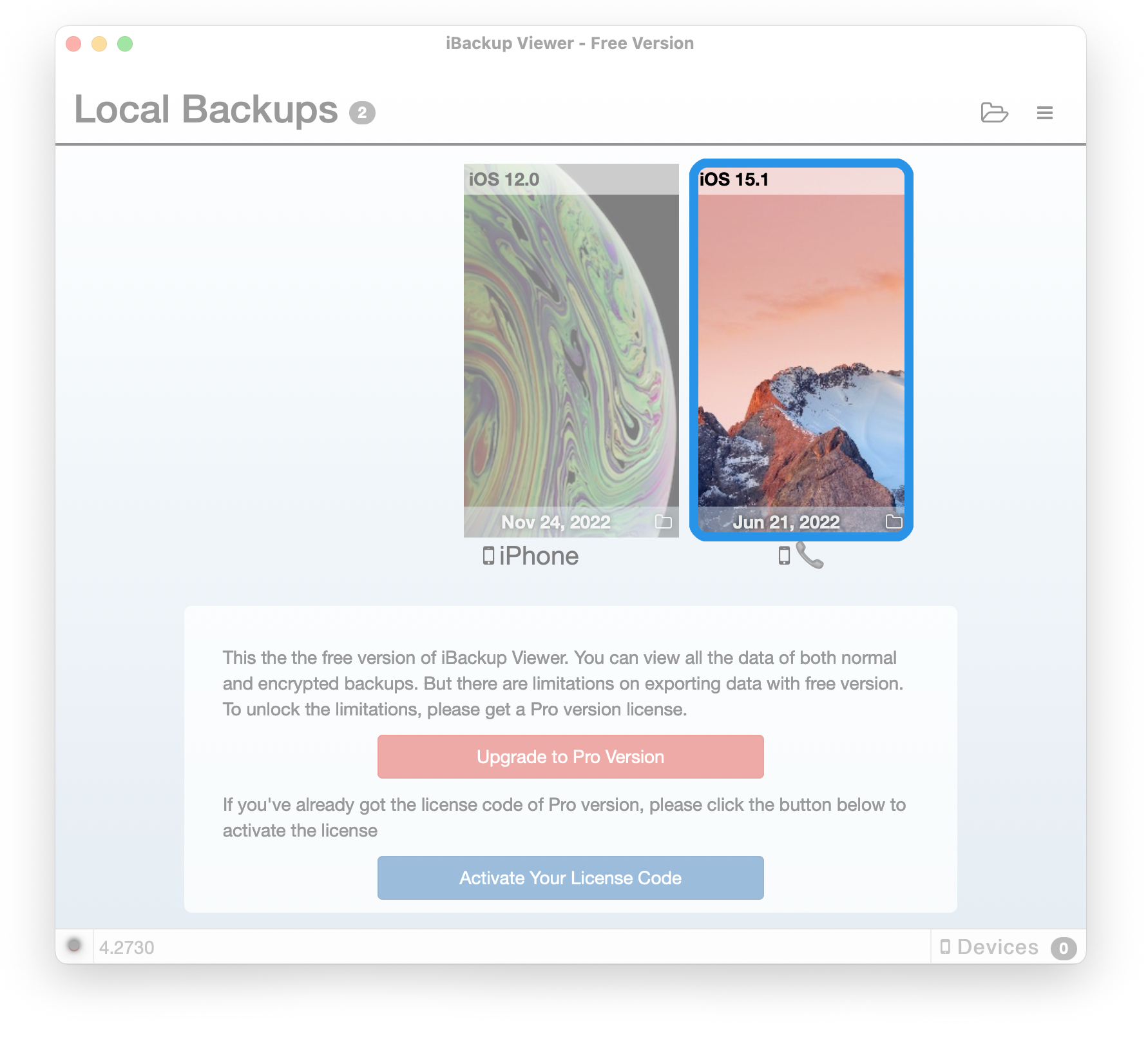 |
 Click the Applications button.
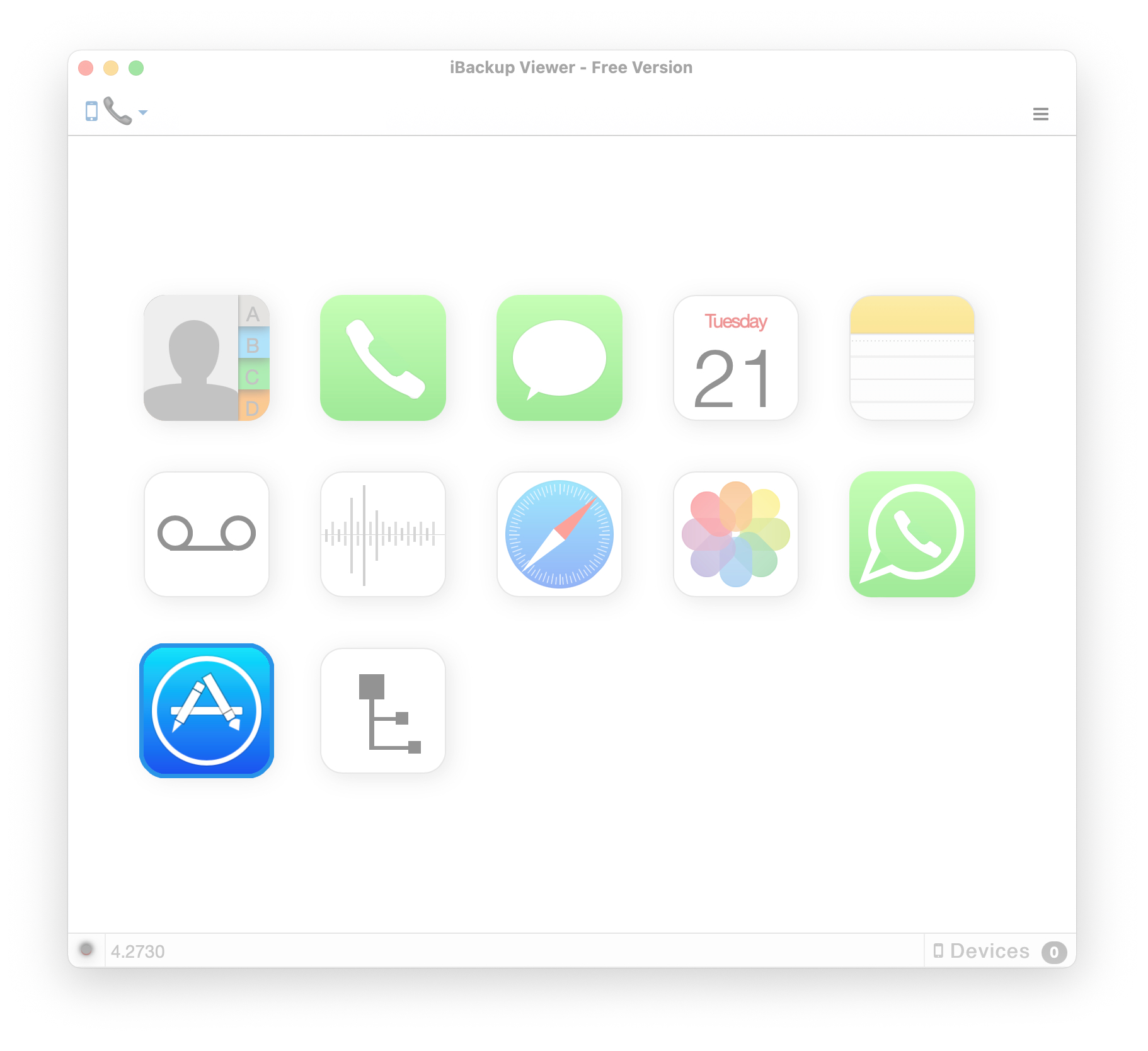 |
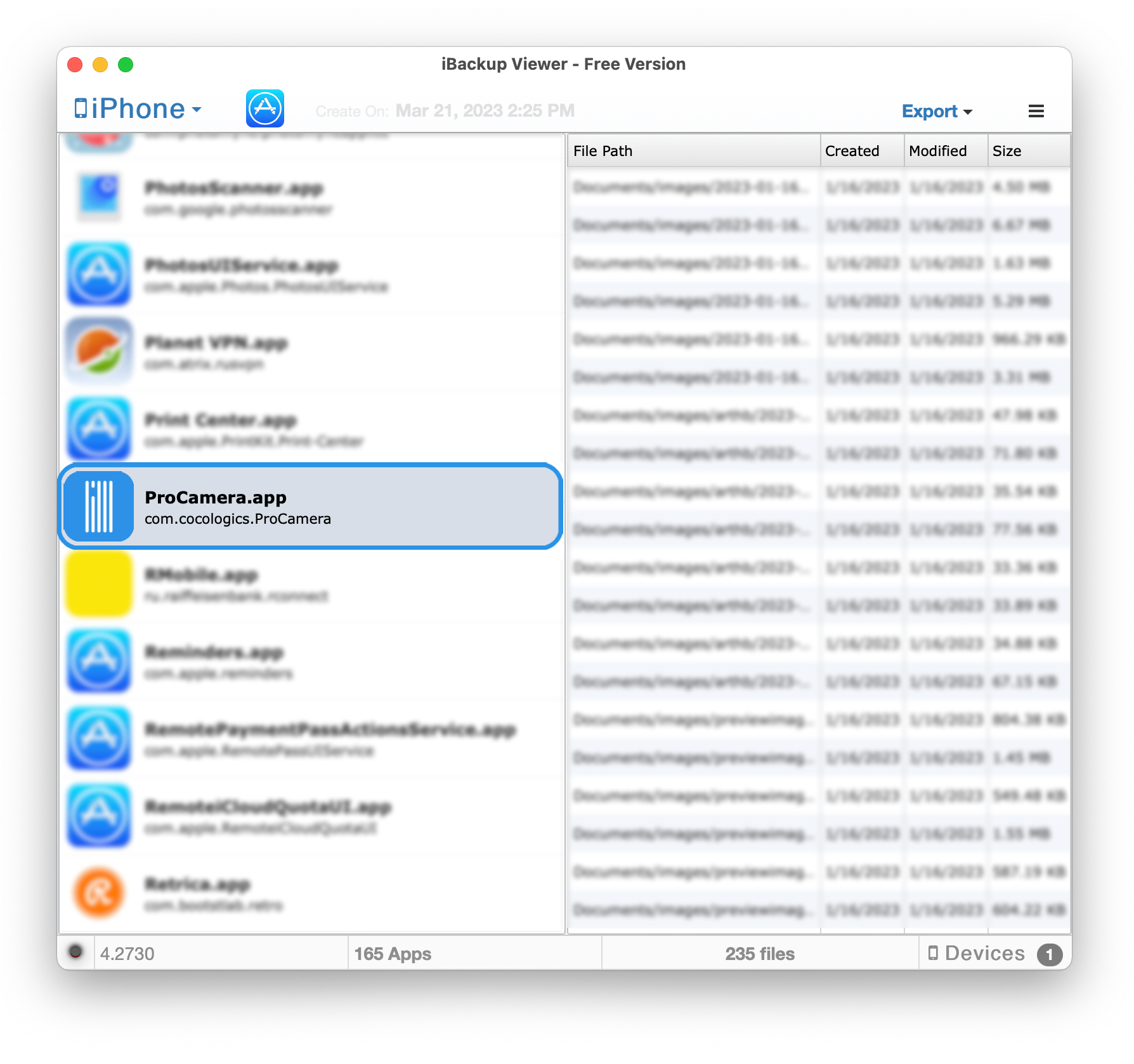
 Find ProCamera.app in the list of apps and click on it.
 |
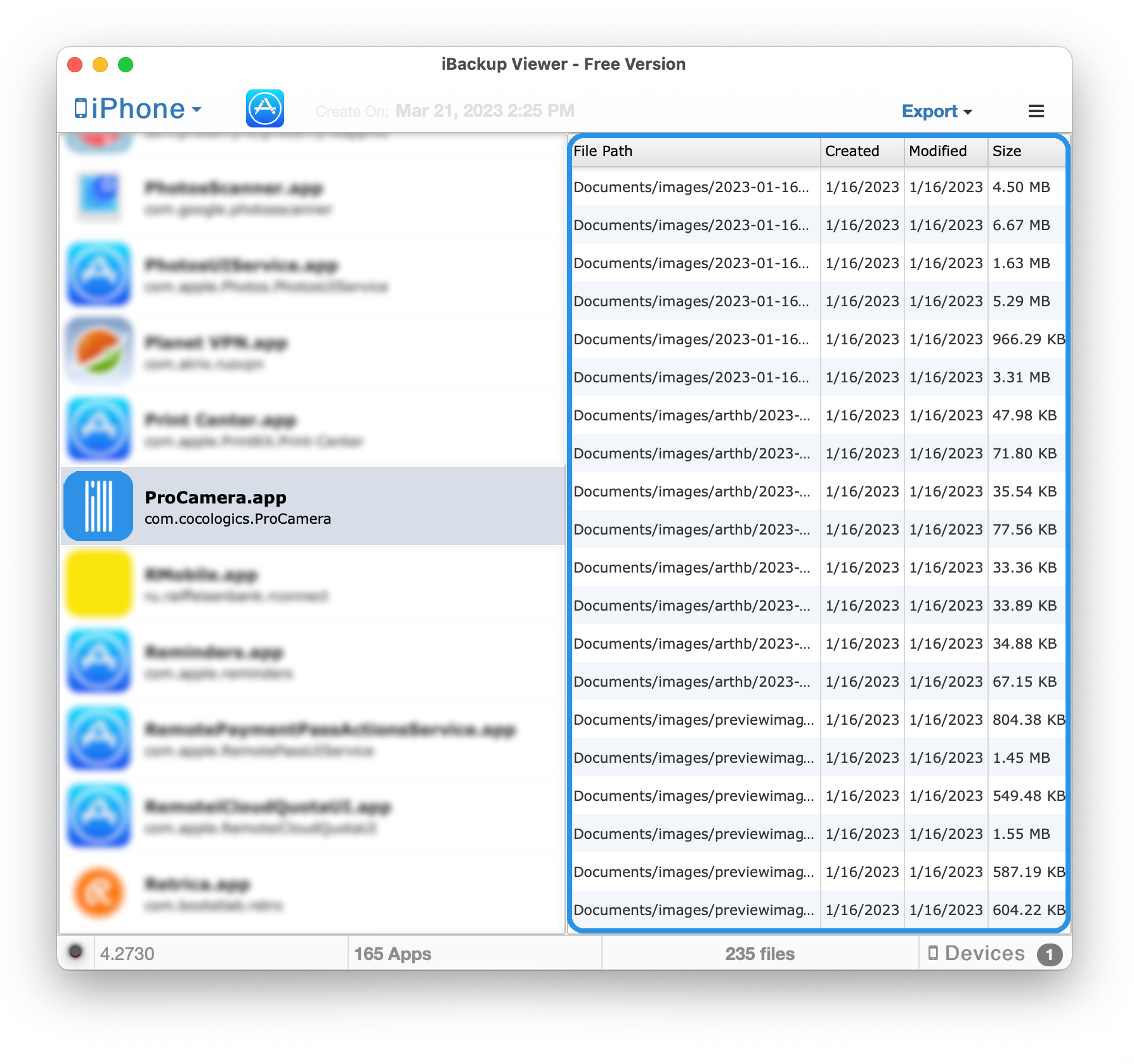
 Select the files you want to restore.
 |
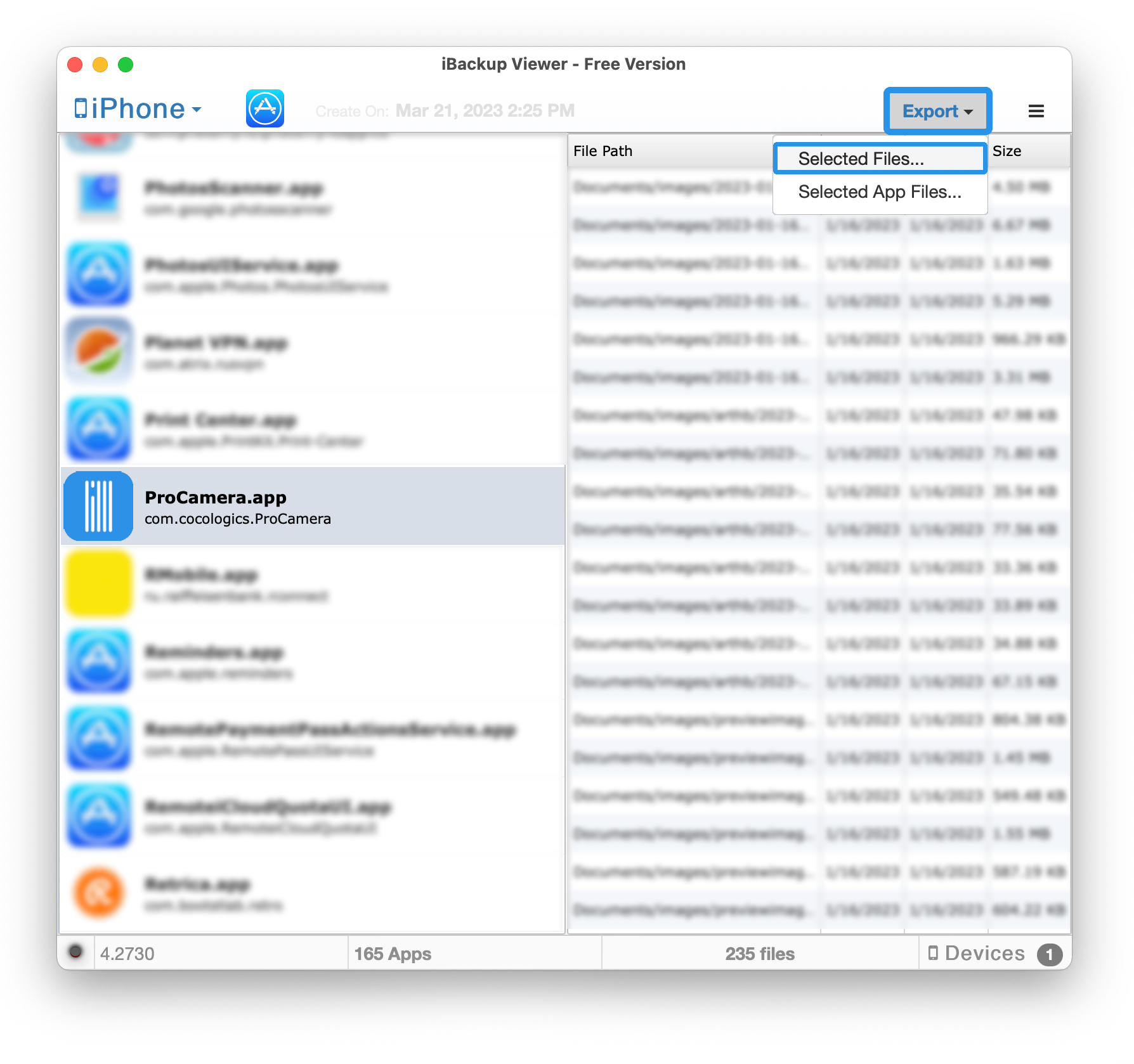
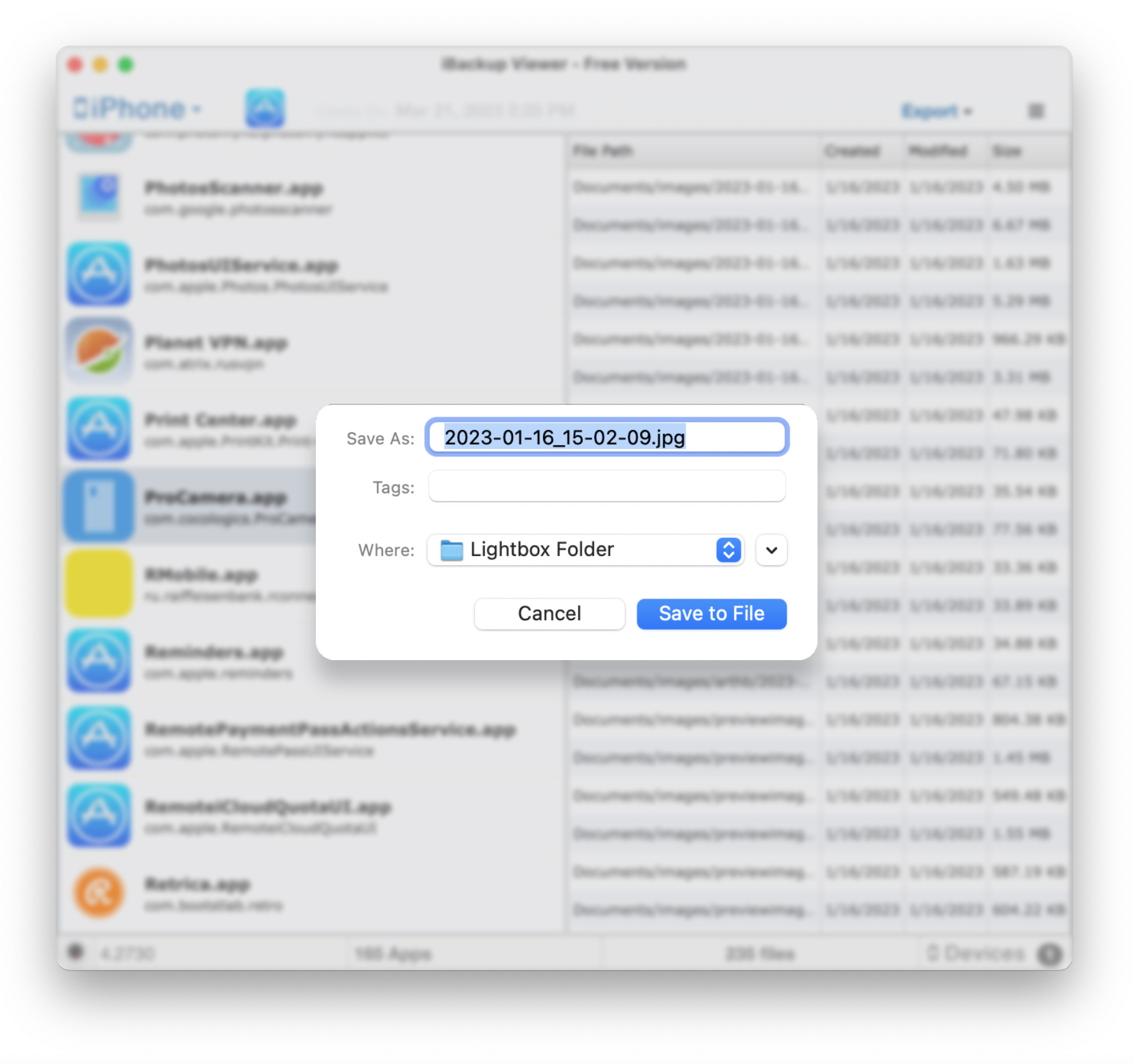
 To export your files, click on the Export button, then select the Selected Files option. Choose the directory where you want your files to be saved (you can also create a new folder if necessary – in our case, we named it Lightbox Folder) and click on the Save to File button.
|
|
 |
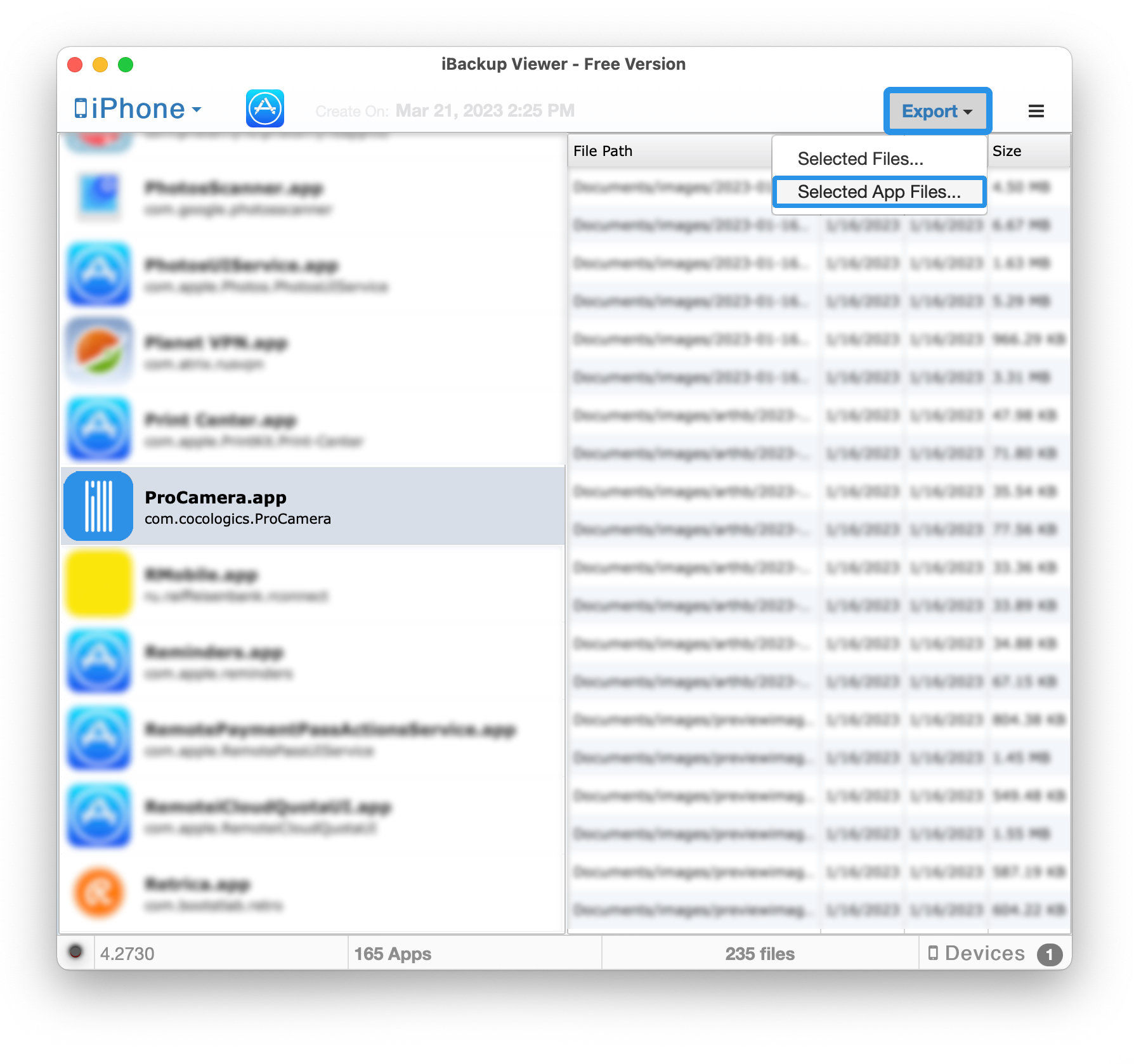
To export all files inside of ProCamera from your backup, simply click on the Export App Files button.
 |
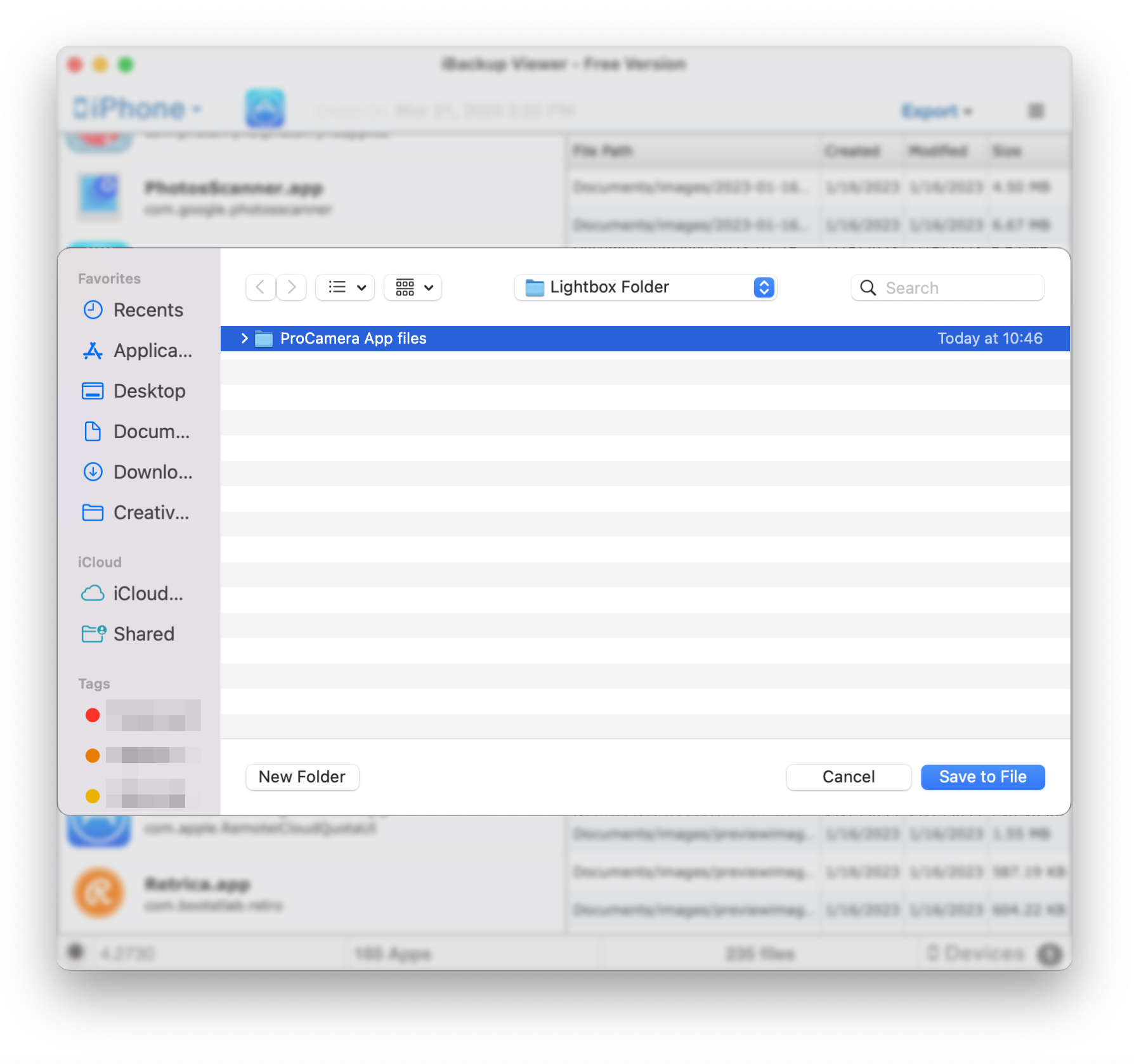
Select the directory for saving files (or create a new folder – in our case, we created the ProCamera App files folder) and click the Save to File button.
 |
By following these steps, you should be able to restore your files from the Lightbox and Private Lightbox folders.
Didn't find an answer? Contact support